Quick start: build a Knowledge Base and ask it a question
Build a Knowledge Base from a website or files, serve it from an MCP endpoint, and ask it a question with a short script. No Studio or dataset required.
A Knowledge Base turns material you already have, such as a website or a set of files, into an index that AI agents can read. You don't need a Sanity Studio, a schema, or any content in a Sanity dataset to build one.
In this quick start, you build a Knowledge Base from a website or files, serve it from an MCP endpoint, and ask it a question with a TypeScript script.
Prerequisites
- A Sanity organization with access to Context, and the Administrator or Developer role in it. Creating Knowledge Bases and MCP endpoints requires one of these roles. Your organization's plan sets how many Knowledge Bases it can hold. See Context plans and limits.
- Material to build from: the URL of a public website, or files such as PDFs and Markdown. Pages behind a login can't be crawled. See Knowledge Base source types for what each source accepts.
- Access to create an organization API token in Manage. You’ll create a token later in this guide.
- Node.js 22.18 or later. These versions run TypeScript files directly, so the example needs no build step.
- An Anthropic API key for the model that answers questions. Any model provider the AI SDK supports works if you swap the provider package and model.
Create the Knowledge Base
In the Sanity Dashboard, open Context and click New knowledge base. A dialog takes you through three steps: name the Knowledge Base and add its sources, describe its purpose, then build it.
Name it and add sources
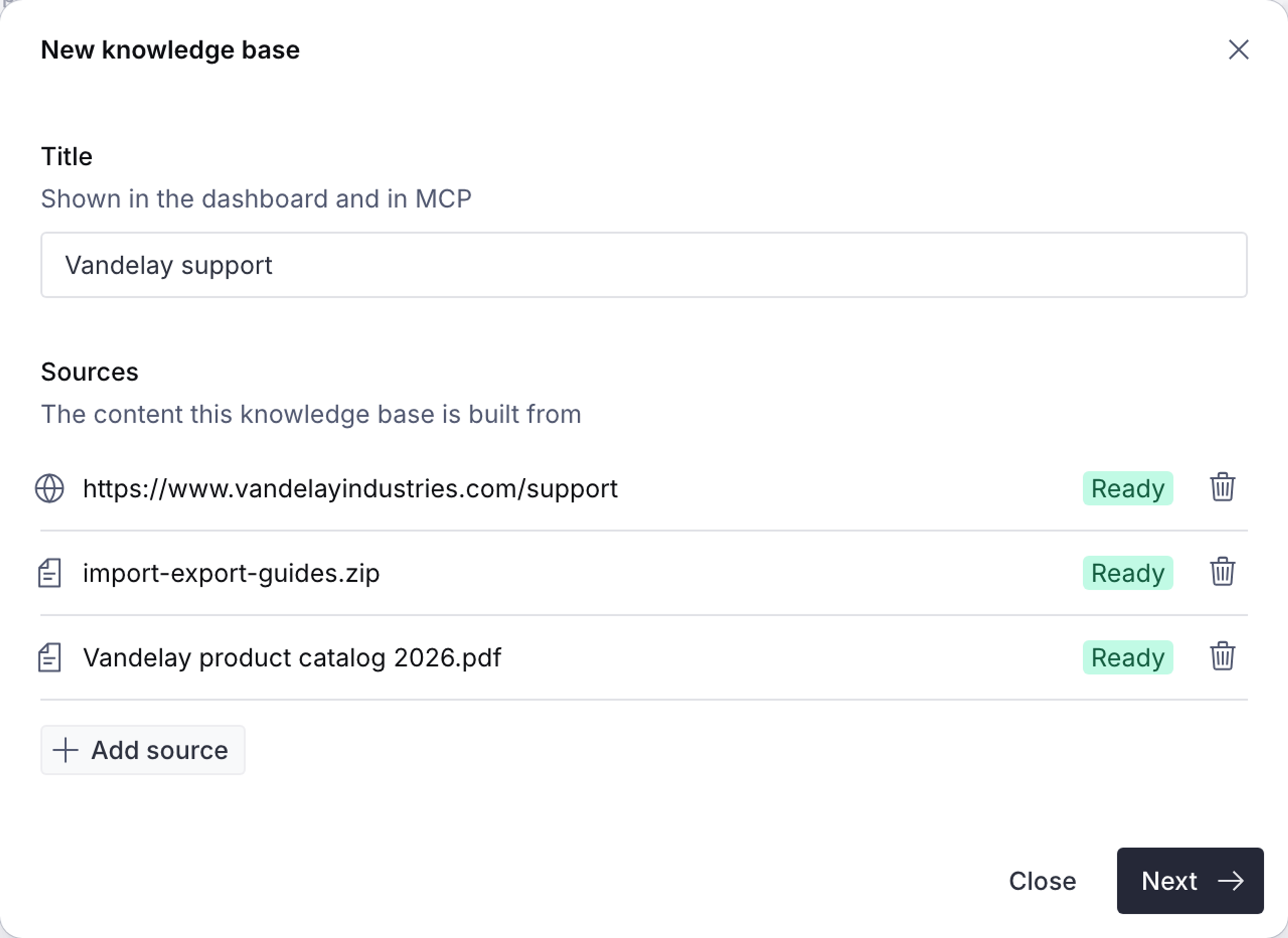
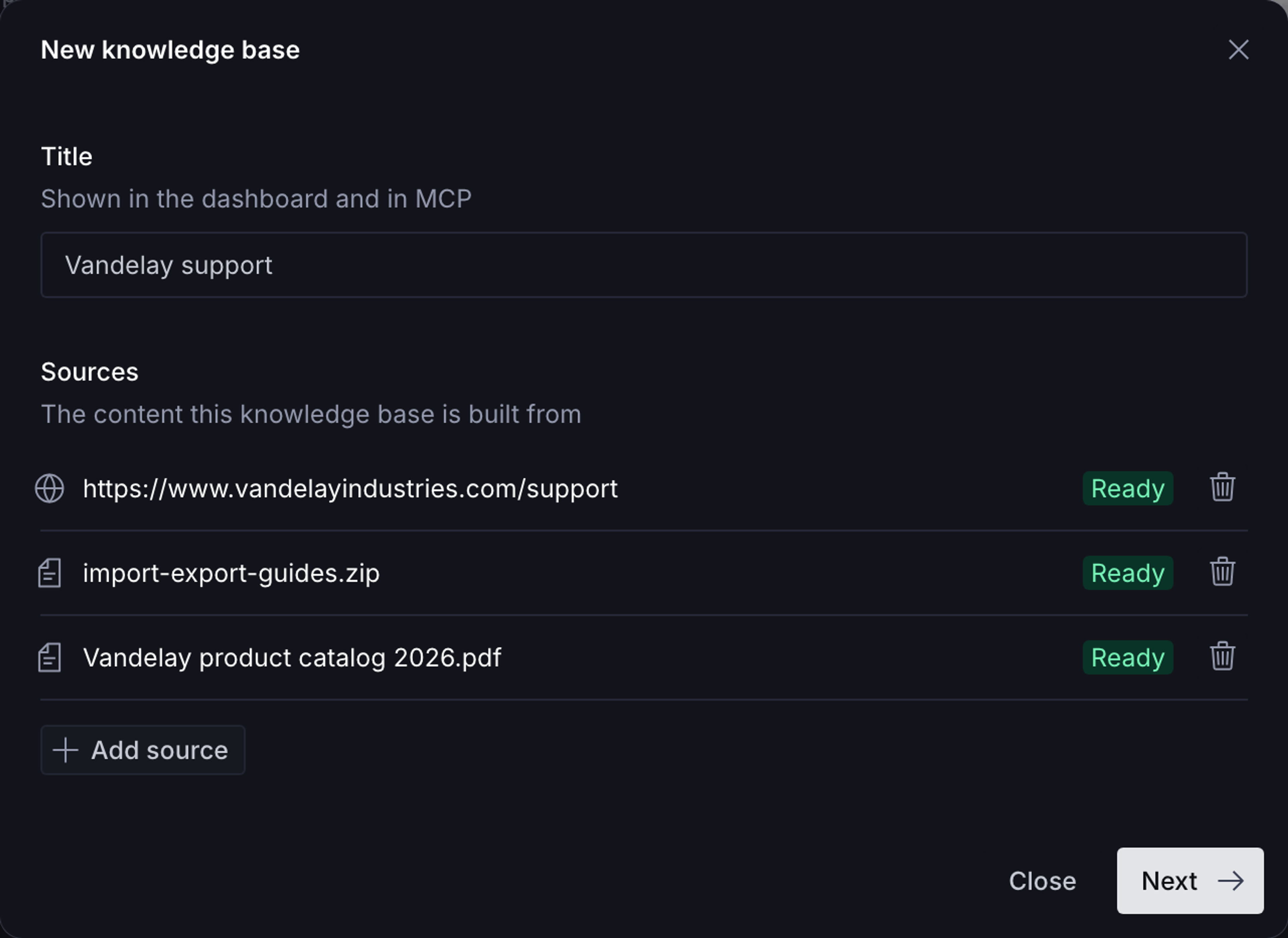
- In Title, enter a short, human-readable name, such as
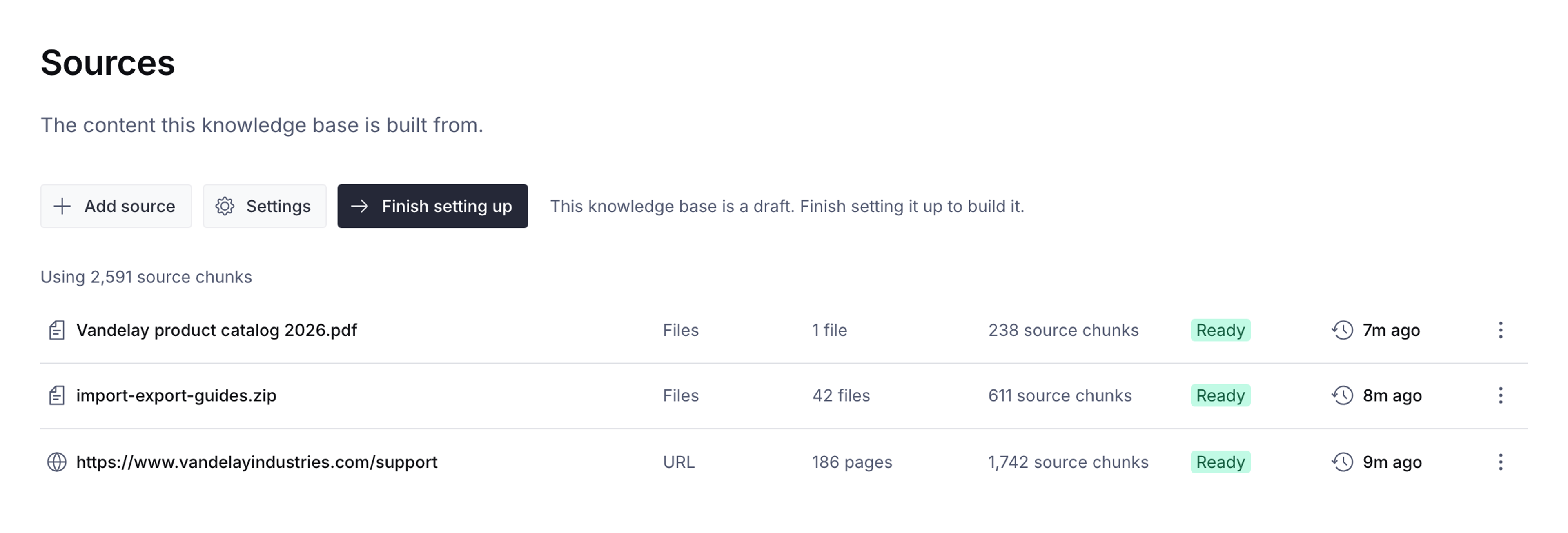
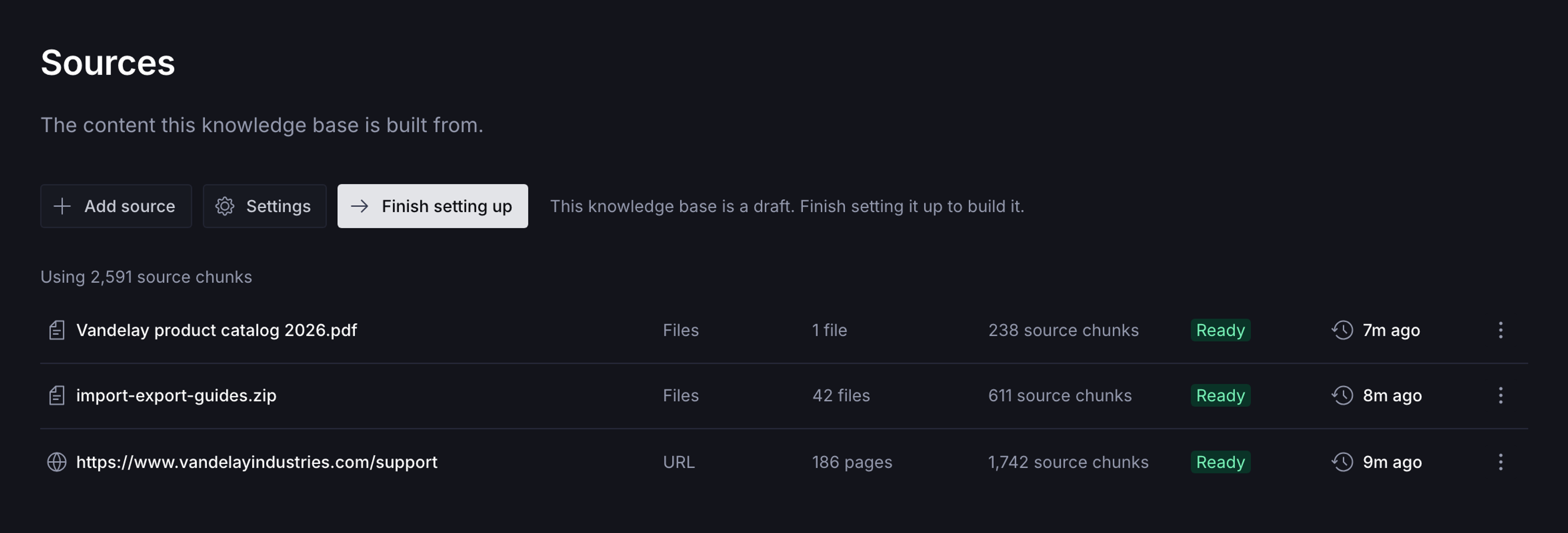
Vandelay support. Context saves the Knowledge Base as a draft as soon as you enter a title or add a source. - Click Add first source and choose Website or Files. Dataset is for content already stored in Sanity, which you don't need here.
- For a website, enter the most specific starting URL you can in URL, such as
https://www.vandelayindustries.com/support. A help center section usually builds a more useful Knowledge Base than a whole domain. Click Add website. If Context finds more than 200 pages, it lists the site's sections under Select sections. Select the sections you want, then click Add website again. For files, choose the files to upload and click Add files. - To add more material, click Add source and repeat. Each source shows Processing… while Context reads it, then Ready.
- Click Next. You don't need to wait for every source to be ready.
Start with a focused set of current material you trust. A smaller build finishes sooner, is easier to check, and keeps stale duplicates out. You can add more sources later.
If your organization already has as many Knowledge Bases as its plan allows, Context shows a plan-limit error. Remove a Knowledge Base you don't need, or see Context plans and limits.
Describe its purpose
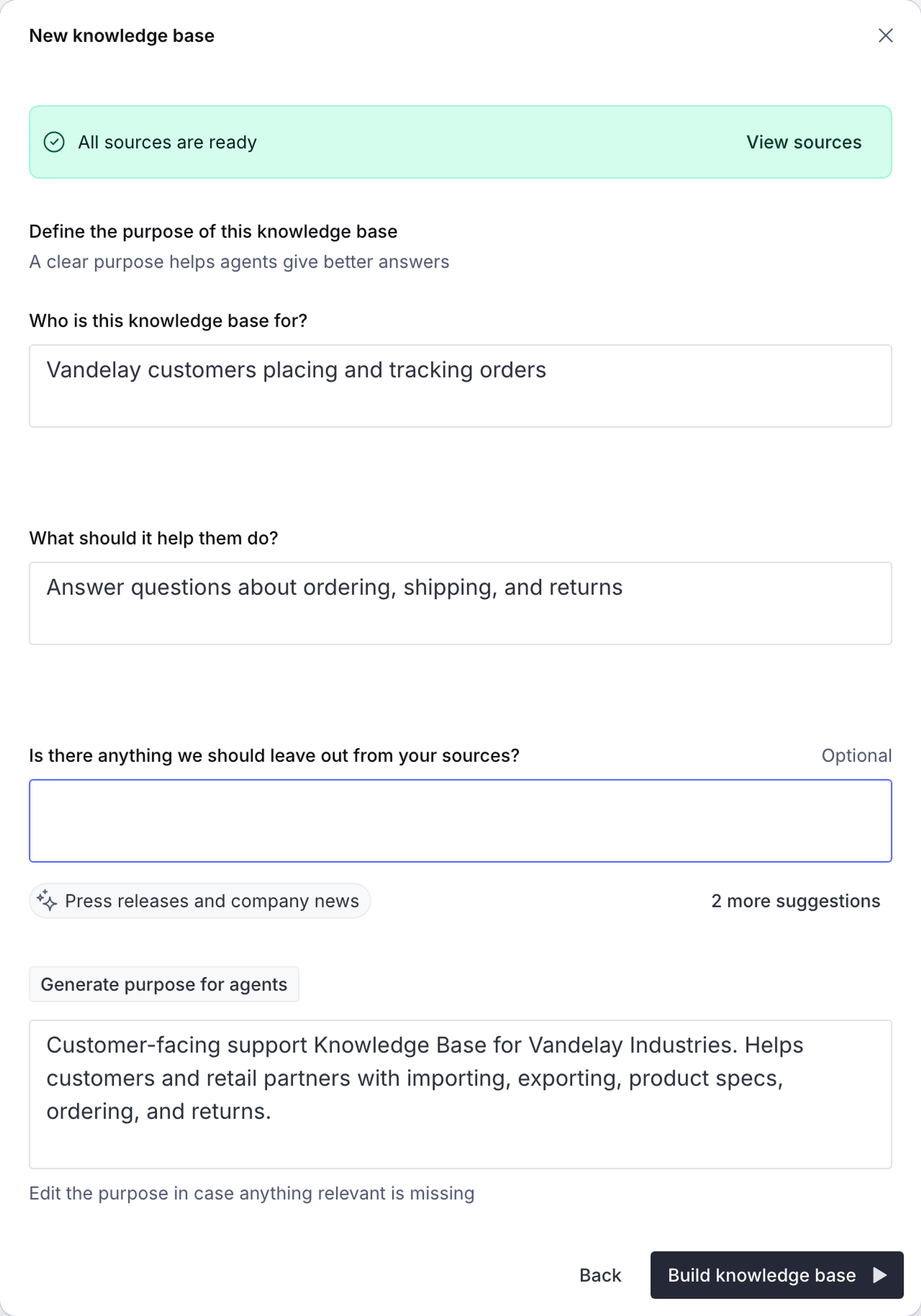
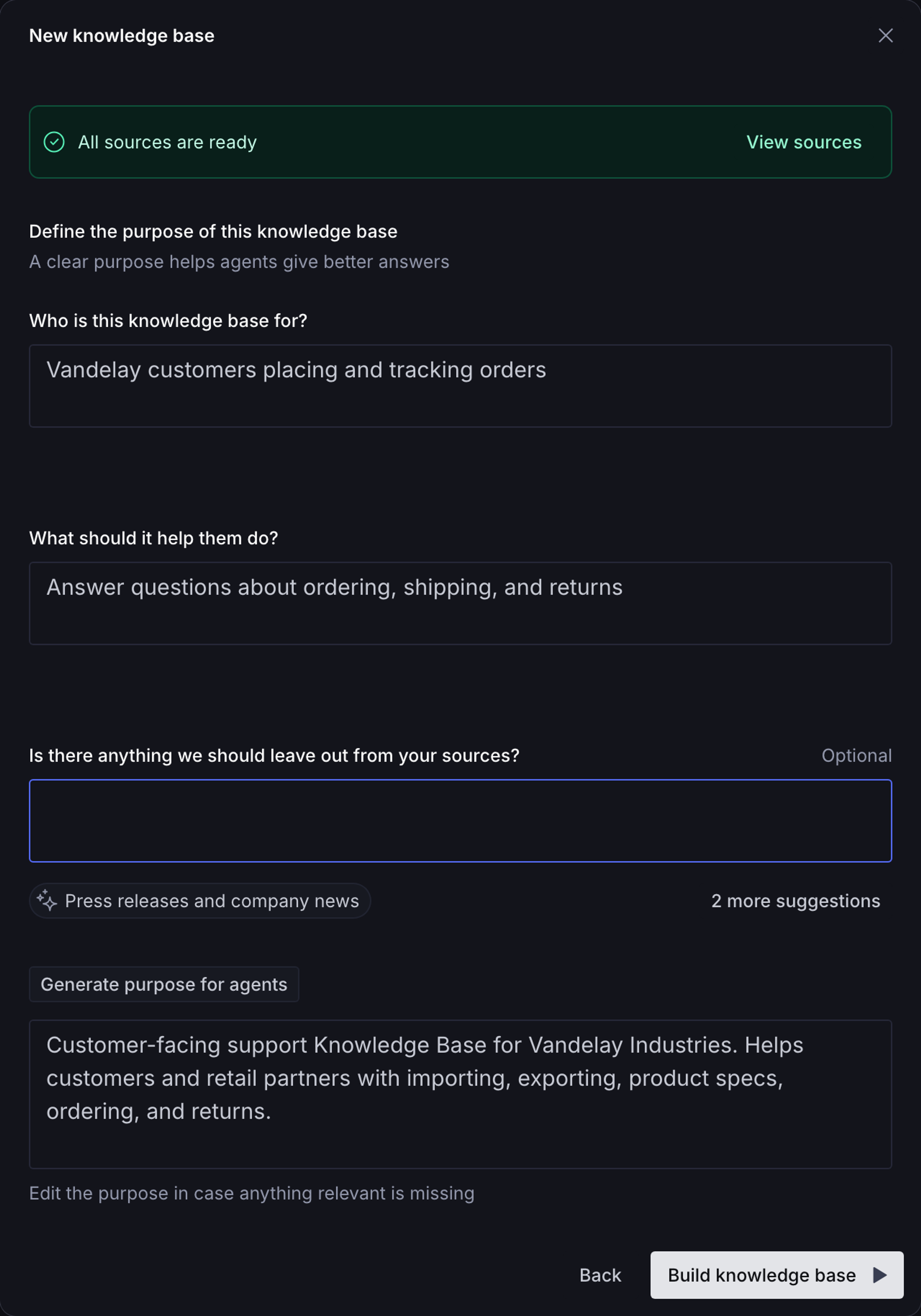
The purpose tells the build which material to keep and how to organize it. Agents also read it at the head of the outline. This step asks three questions:
- Who is this knowledge base for?
- What should it help them do?
- Is there anything we should leave out from your sources? This one is optional.
When you click into a question, Context suggests answers drawn from your sources. Click a suggestion to add it, or type your own answer.
Click Generate purpose for agents to write a purpose from your answers. Read it and edit anything that's missing or wrong. A specific purpose gives the build more to work with. "Customer-facing support Knowledge Base for Vandelay Industries. Helps customers and retail partners with importing, exporting, product specs, ordering, and returns" produces a better outline than "Vandelay docs."
Build it
Click Build knowledge base. The button is available once every source is ready. The dialog shows the build's progress. Larger sources take longer to build. You can close the dialog or leave the page while it runs, and Context emails you when the Knowledge Base is ready.
If you close the dialog before building
Context keeps the Knowledge Base as a draft, with its title, its sources, and any purpose you wrote. Your answers to the purpose questions aren't kept. To continue, open the Knowledge Base from Knowledge bases:
- If it has no purpose yet, click Finish setting up. The dialog reopens where you left off.
- If it already has a purpose, click Build entries.
Review the entries
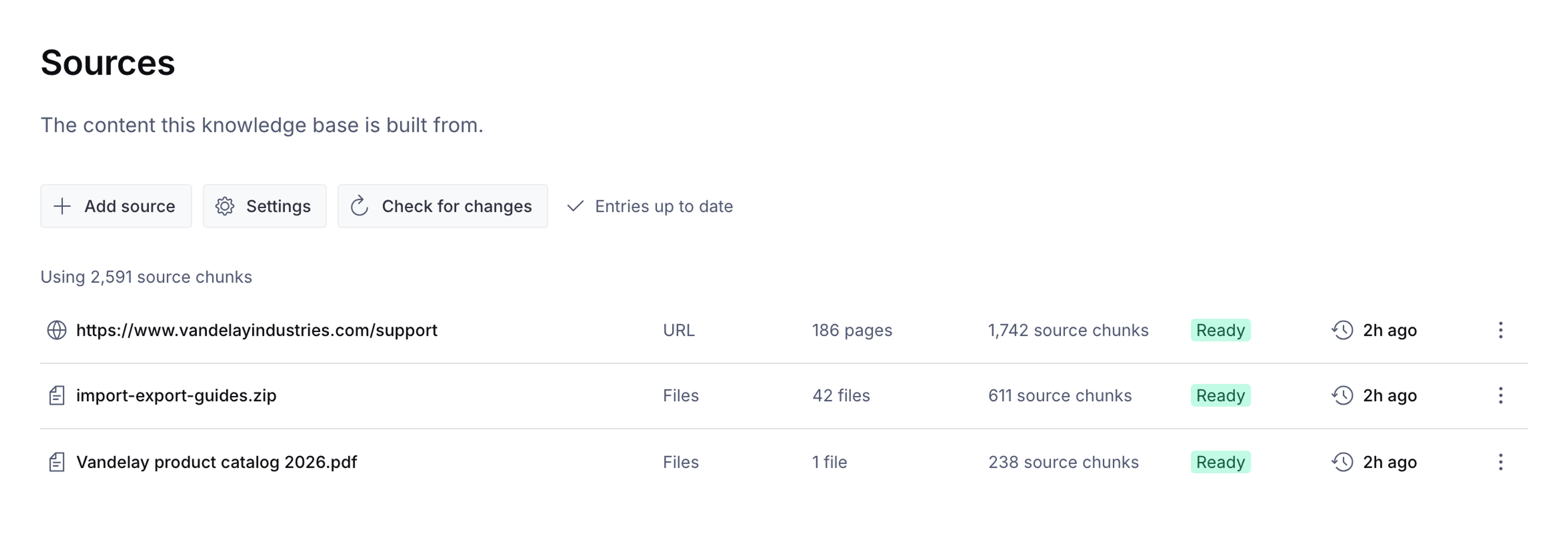
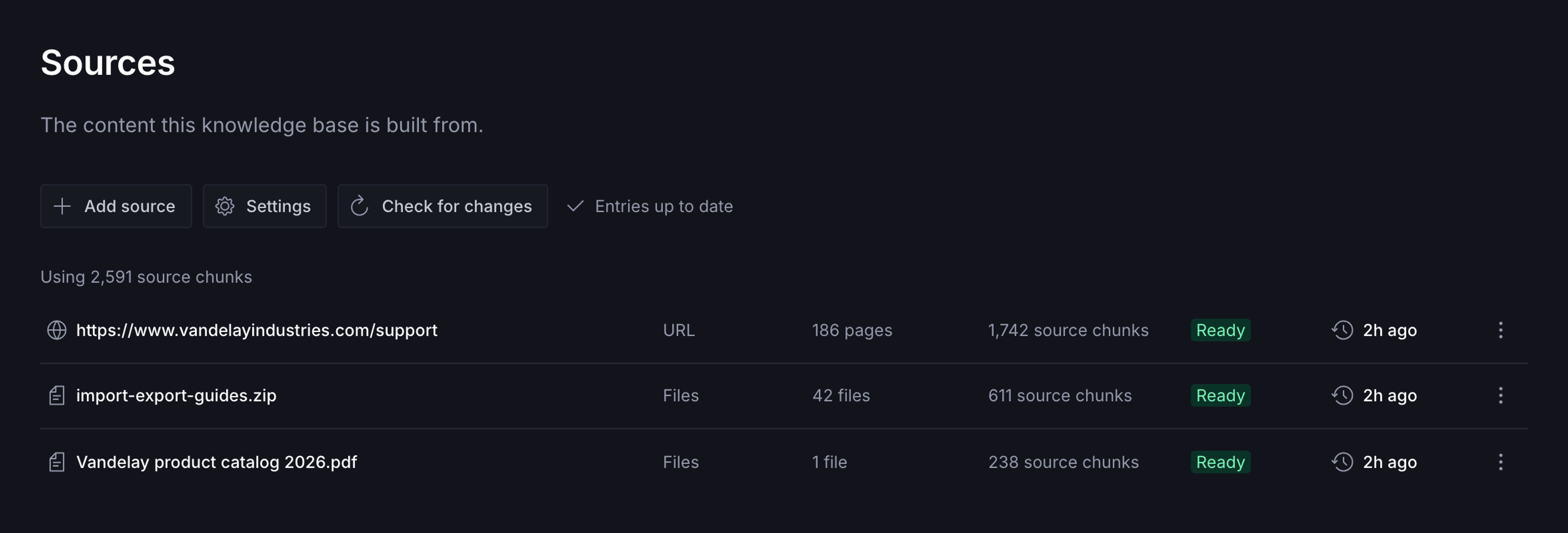
The build reads your sources and organizes them into topic entries. It's done when the dialog reads Your knowledge base is ready, or when the status on the Sources page reads Entries up to date. Click Open knowledge base to go to its Sources page. If the build fails, or the status reports that no sources could be processed, remove the failed sources or add new ones, then click Build entries.
Open Entries to see the outline the build produced. Check that the topics you expect are there and that each entry's summary describes its topic accurately.
Issues lists places where your sources disagree and nothing says which is right. You can ask questions before you resolve them, but answers on those topics may be uncertain until you do. See Resolve Knowledge Base issues.
Create an MCP endpoint
Agents don't read a Knowledge Base directly. They connect to an MCP endpoint: a hosted URL that serves the Knowledge Base to any MCP client.
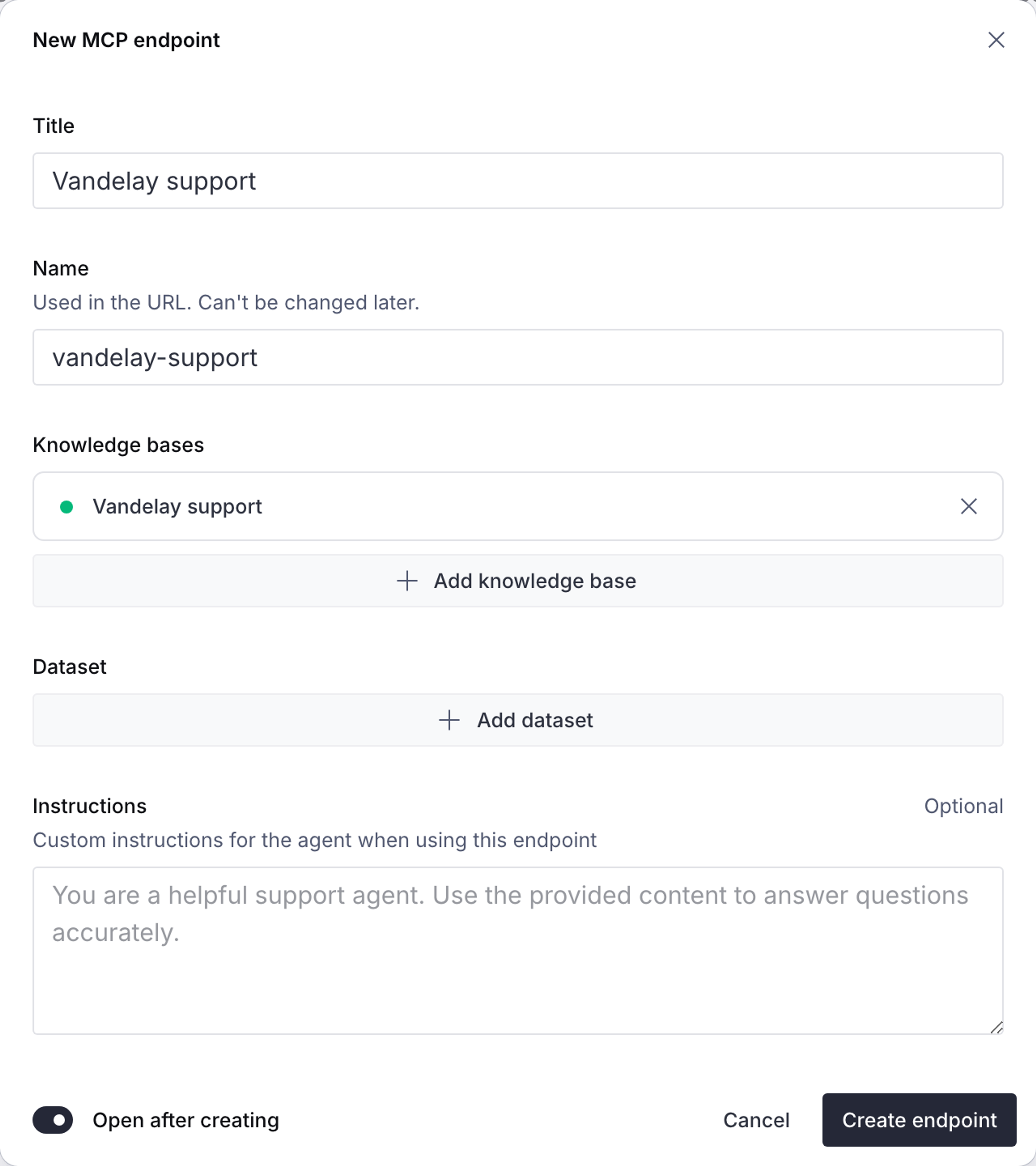
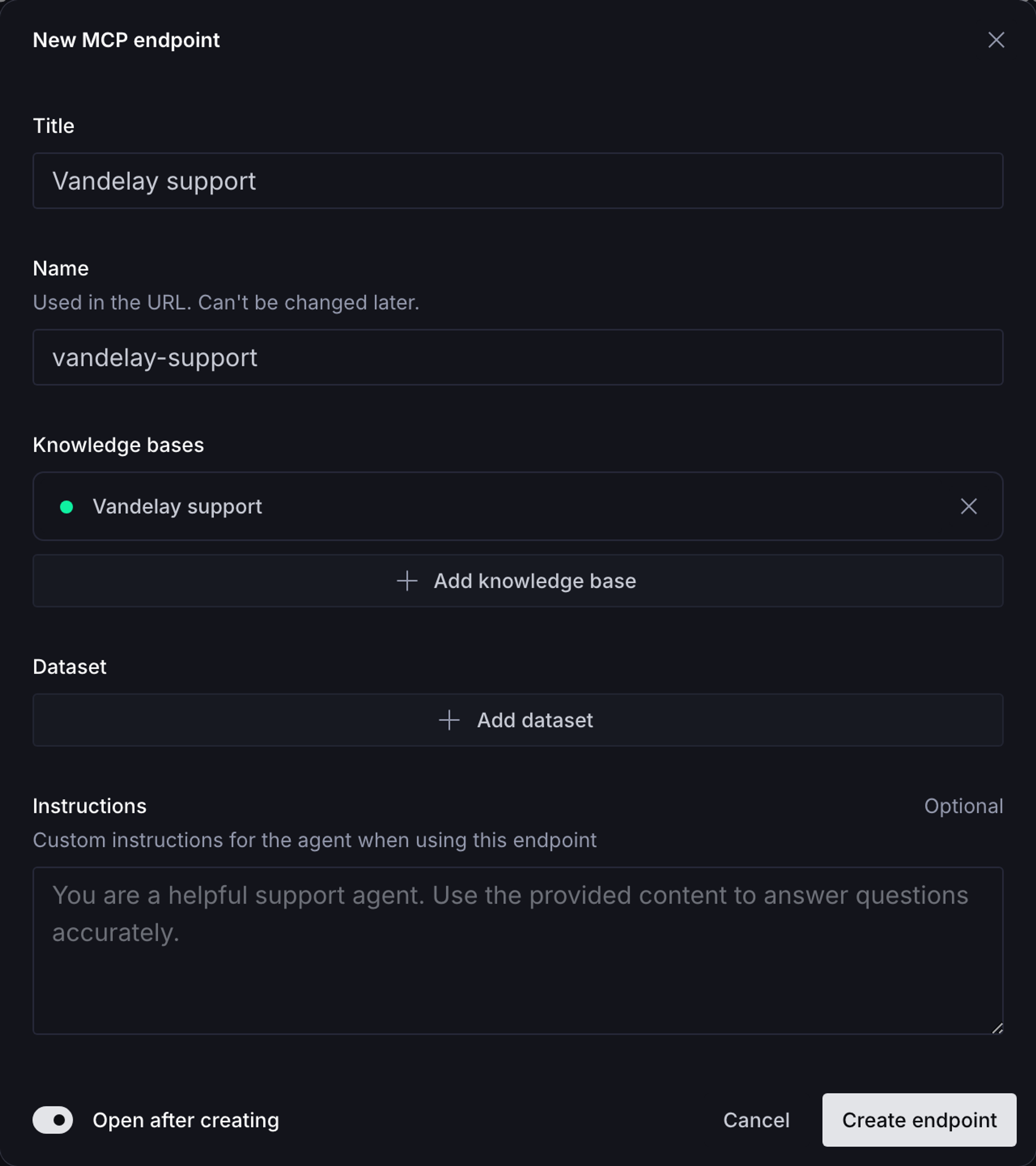
- In the Context sidebar, open MCP endpoints and click New endpoint.
- Enter a Title, such as
Support agent. - Optionally, edit the Name. By default it’s a hyphen-separated version of the title. The name is part of the endpoint URL and can't be changed later.
- Under Knowledge bases, select Add knowledge base and choose the Knowledge Base you built in the previous steps.
- Leave Instructions empty for now, and click Create endpoint.
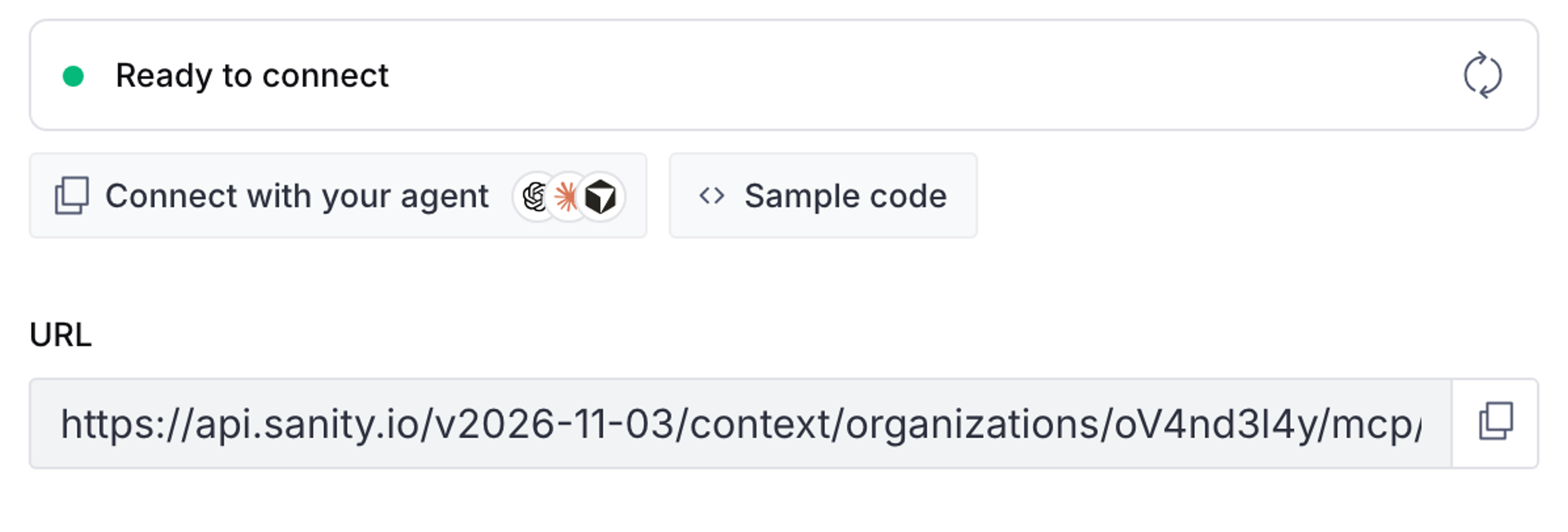
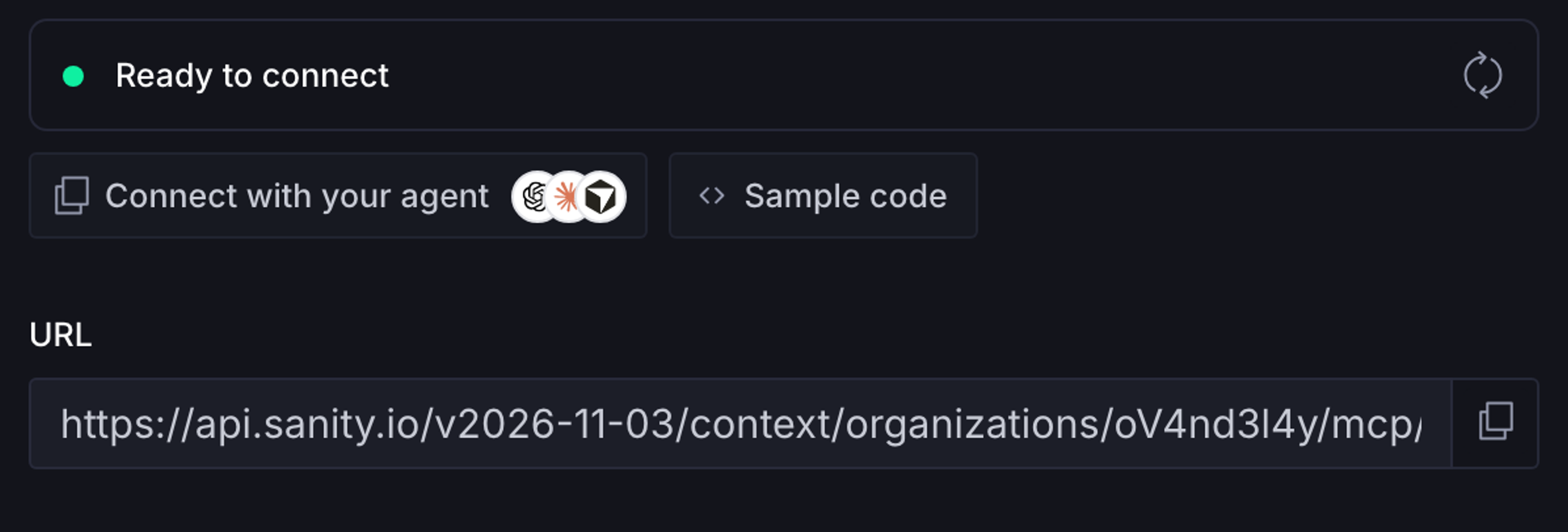
Context opens the new endpoint. Copy the address from its URL field.
Create an organization API token
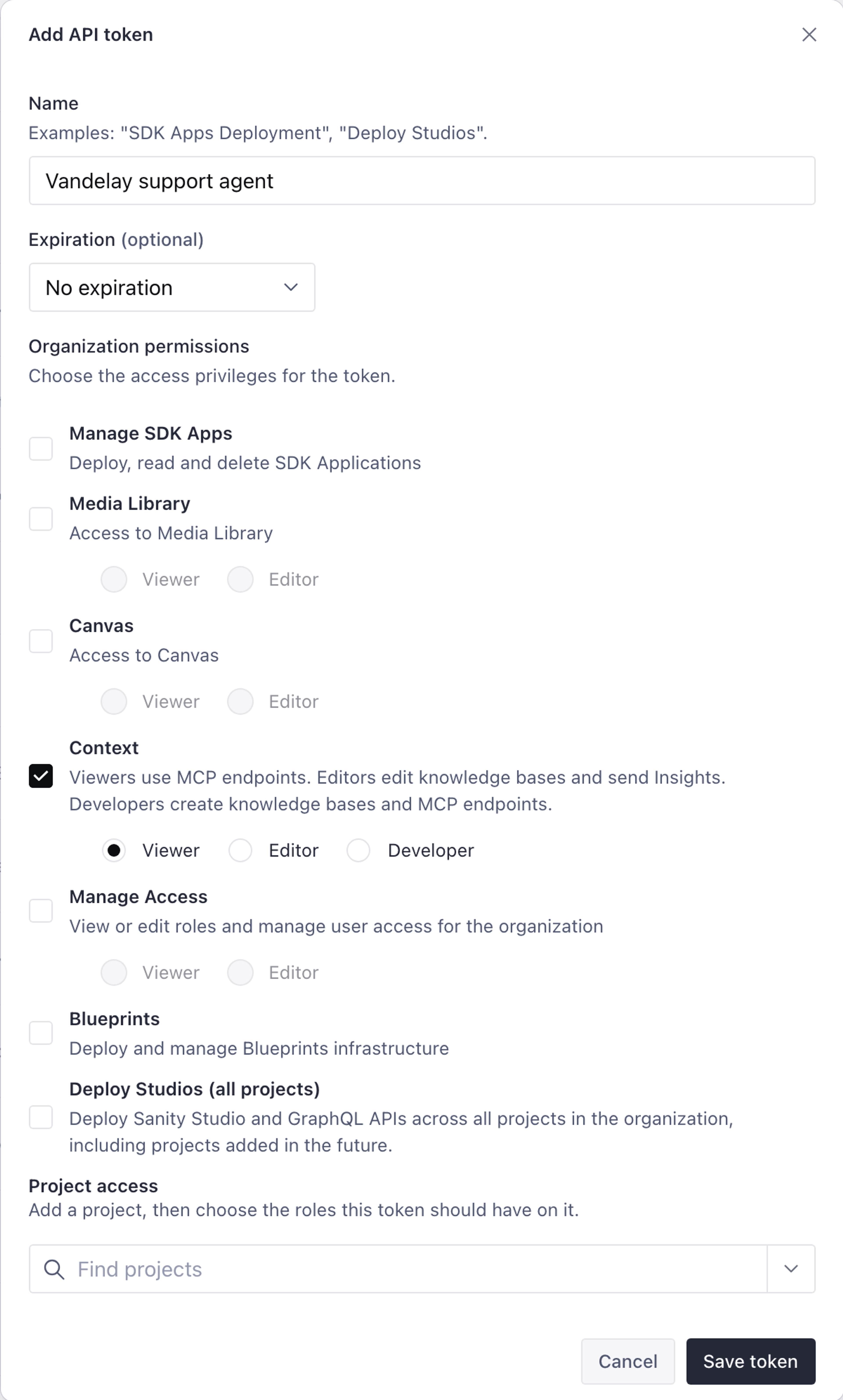
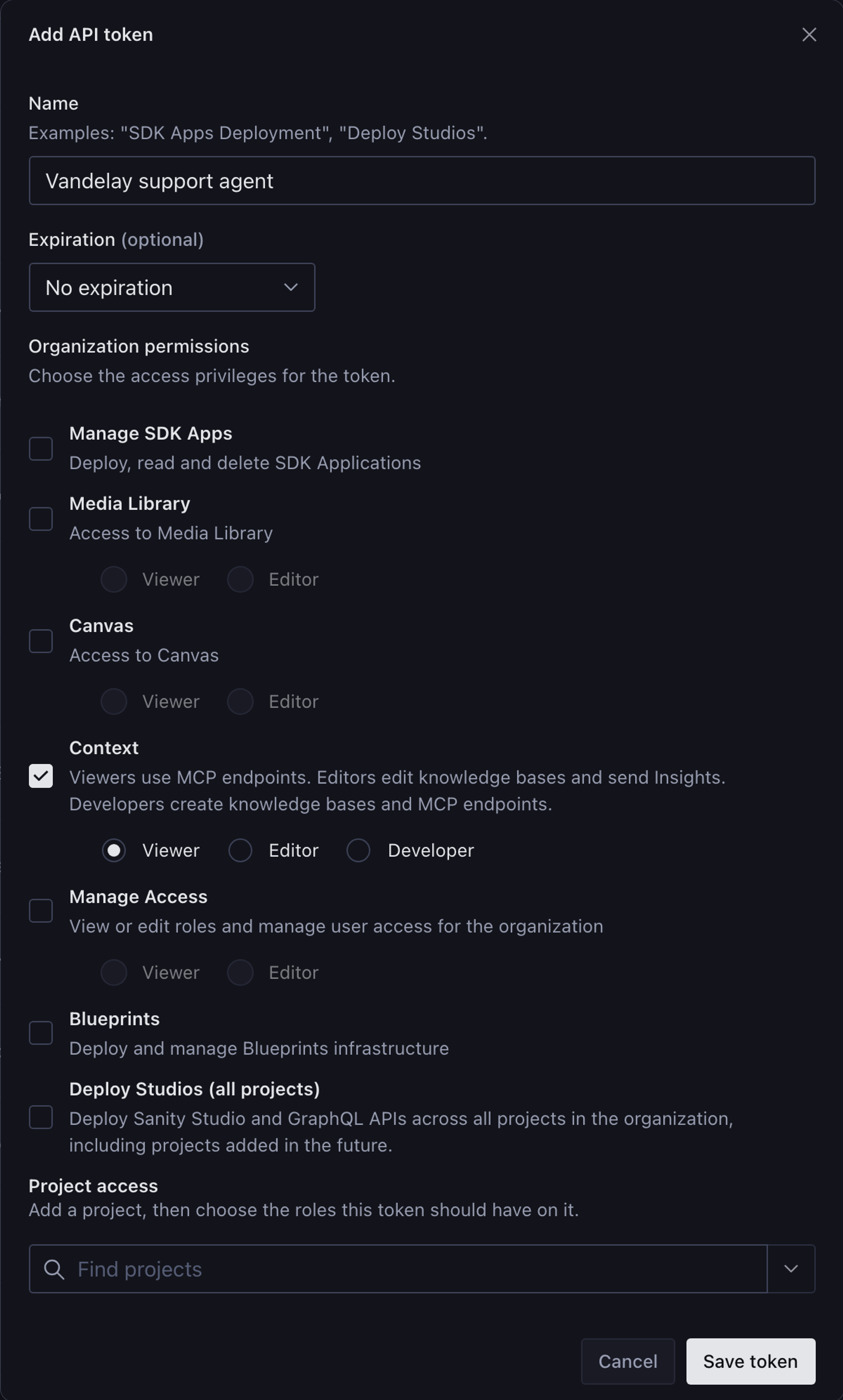
The endpoint only answers requests that carry an organization API token with Viewer access to Context. In Manage, open your organization (not a project), go to API > Tokens, and create a token with the Context permission set to Viewer. Copy the token and keep it private.
A project API token doesn't work. The endpoint refuses it with a 403 error.
Set up a script
The script connects to your MCP endpoint, gives the endpoint's tools to a model, and prints the model's answer. It uses the Vercel AI SDK and its MCP client.
Create a folder for the script and install the packages:
mkdir kb-quickstart
cd kb-quickstart
npm init -y
# Treat .ts files as ES modules, so ask.ts can use import and top-level await
npm pkg set type=module
npm install ai@^7 @ai-sdk/mcp@^2 @ai-sdk/anthropic@^4
mkdir kb-quickstart
cd kb-quickstart
npm init -y
# Treat .ts files as ES modules, so ask.ts can use import and top-level await
npm pkg set type=module
pnpm add ai@^7 @ai-sdk/mcp@^2 @ai-sdk/anthropic@^4
mkdir kb-quickstart
cd kb-quickstart
npm init -y
# Treat .ts files as ES modules, so ask.ts can use import and top-level await
npm pkg set type=module
yarn add ai@^7 @ai-sdk/mcp@^2 @ai-sdk/anthropic@^4
mkdir kb-quickstart
cd kb-quickstart
npm init -y
# Treat .ts files as ES modules, so ask.ts can use import and top-level await
npm pkg set type=module
bun add ai@^7 @ai-sdk/mcp@^2 @ai-sdk/anthropic@^4
Install the three packages in one command, with the major versions shown. Use ai@^7 with @ai-sdk/mcp@^2, because the two share an internal provider package and mismatched majors produce type errors on tools.
Create a .env file. Replace the placeholders with the endpoint URL from Create an MCP endpoint, the token from Create an organization API token, and your Anthropic API key:
SANITY_CONTEXT_MCP_URL=YOUR_ENDPOINT_URL
SANITY_ORGANIZATION_TOKEN=YOUR_ORGANIZATION_TOKEN
ANTHROPIC_API_KEY=YOUR_ANTHROPIC_API_KEY
Keep .env out of version control. The organization token carries organization-level permissions.
Create ask.ts:
import {anthropic} from '@ai-sdk/anthropic'
import {createMCPClient} from '@ai-sdk/mcp'
import {generateText, stepCountIs} from 'ai'

const url = process.env.SANITY_CONTEXT_MCP_URL
const token = process.env.SANITY_ORGANIZATION_TOKEN
if (!url || !token) {
  throw new Error('Set SANITY_CONTEXT_MCP_URL and SANITY_ORGANIZATION_TOKEN in .env')
}

const question = process.argv[2] ?? 'What topics does this knowledge base cover?'

// Connect to your MCP endpoint. The tools it returns read from your Knowledge Base.
const mcpClient = await createMCPClient({
  transport: {
    type: 'http',
    url,
    headers: {Authorization: `Bearer ${token}`},
  },
})

try {
  const {text} = await generateText({
    model: anthropic('claude-sonnet-5-5'),
    instructions: 'Answer using only the Knowledge Base tools. If the Knowledge Base does not cover the question, say so.',
    tools: await mcpClient.tools(),
    // Let the model call several tools (outline, search, read) before it answers.
    stopWhen: stepCountIs(10),
    prompt: question,
  })
  console.log(text)
} finally {
  await mcpClient.close()
}
The model decides which tools to call. stopWhen: stepCountIs(10) lets it read the Knowledge Base outline, search, and open entries before it answers, instead of stopping after the first tool call.
Ask the Knowledge Base a question
Run the script with a question whose answer you already know from your material:
node --env-file=.env ask.ts "What is our standard process for auditing AI content?"
The script prints the model's answer. Check that it matches your source material rather than general knowledge. A specific question like this one gives you something to check. "Tell me about ai content ops" doesn't. Run the script without a question to ask what the Knowledge Base covers.
Against a Knowledge Base built from material about AI content audits, the script printed this answer. Your answer depends on your material and can vary between runs:
The knowledge base describes this audit process for AI-drafted content:

1. **Assign an owner.** Every AI-drafted article gets a named human owner before it is published.
2. **Check specs.** The owner checks every product spec against the product catalog.
3. **Second-editor review.** A second editor reviews tone and claims within 2 business days.
4. **Quarterly sampling.** Once a quarter, the content team samples 20 published AI-assisted articles. They log any errors in the audit sheet.

The knowledge base doesn't say where the audit sheet is kept. It also doesn't say what happens after an error is logged.
If the script fails with MCP HTTP Transport Error: POSTing to endpoint (HTTP 401), the token is missing or invalid. An HTTP 403 with No access to knowledge base means the token is a project token or lacks Viewer access to Context.
Building a chat app?
Above the endpoint URL, Sample code opens a streaming chat route, and Connect with your agent copies a setup prompt for coding agents. For more on connecting agents, see Configure a Context MCP endpoint and Connect Sanity Context with Vercel AI SDK.
Next steps
- Resolve Knowledge Base issues. Settle the conflicts the build raised so answers stay consistent.
- Keep a Knowledge Base current. Refresh schedules, change detection, and rebuilds.
- Knowledge Bases. How the outline, entries, and instructions fit together.
- Configure a Context MCP endpoint. Connect the endpoint to an agent you build.