Get started with Sanity Content Agent
Sanity Content Agent is an AI assistant that helps you work with content across your Sanity projects.
The Content Agent is a conversational AI assistant that helps you work with content across all the projects in your organization.
Instead of navigating Studio structure, writing queries, or asking developers for help, you describe what you need in plain language. The agent understands the shape of your content, follows references, and works within your permissions.
This guide will help you understand what the Content Agent is, how to access it, and how to use its key capabilities.
With the Content Agent, you can:
- Find content across your project: "Show me all product pages missing meta descriptions."
- Analyze patterns like tone inconsistencies, metadata gaps, or outdated terminology.
- Create documents that match your schema, from blog posts to product pages.
- Update content: rewrite, translate, or improve fields across one or many documents.
- Generate and transform images directly within your documents.
- Combine capabilities in a single request: "For all articles, summarize cleared feedback items and create a blog post reporting on how community interactions have improved our content."
Is it safe?
Absolutely. The Content Agent never makes changes without your approval. All proposed edits require your review, and you control whether to create drafts, add to a content release, or discard changes entirely.
Requirements
- Access to the Sanity Dashboard.
- Sanity Studio v5.1.0 or later. v6 is recommended.
- Sign in and open your deployed studio once, using an account that can deploy studios for the project. The studio registers its schema automatically, which is what lets the agent understand the shape of your content.
- If you host your studio yourself, register it first by running
npx sanity@latest deploy --externalfrom your studio folder. A self-hosted studio can't register its schema until it's registered with your project. The command also deploys the schema, so run it again on every deployment. For the full steps, see Set up and configure Dashboard.
The agent uses your existing Sanity permissions. It can only see documents you can see and edit content where you have write access.
Core concepts
Searches and changes
The agent's work falls into two categories:
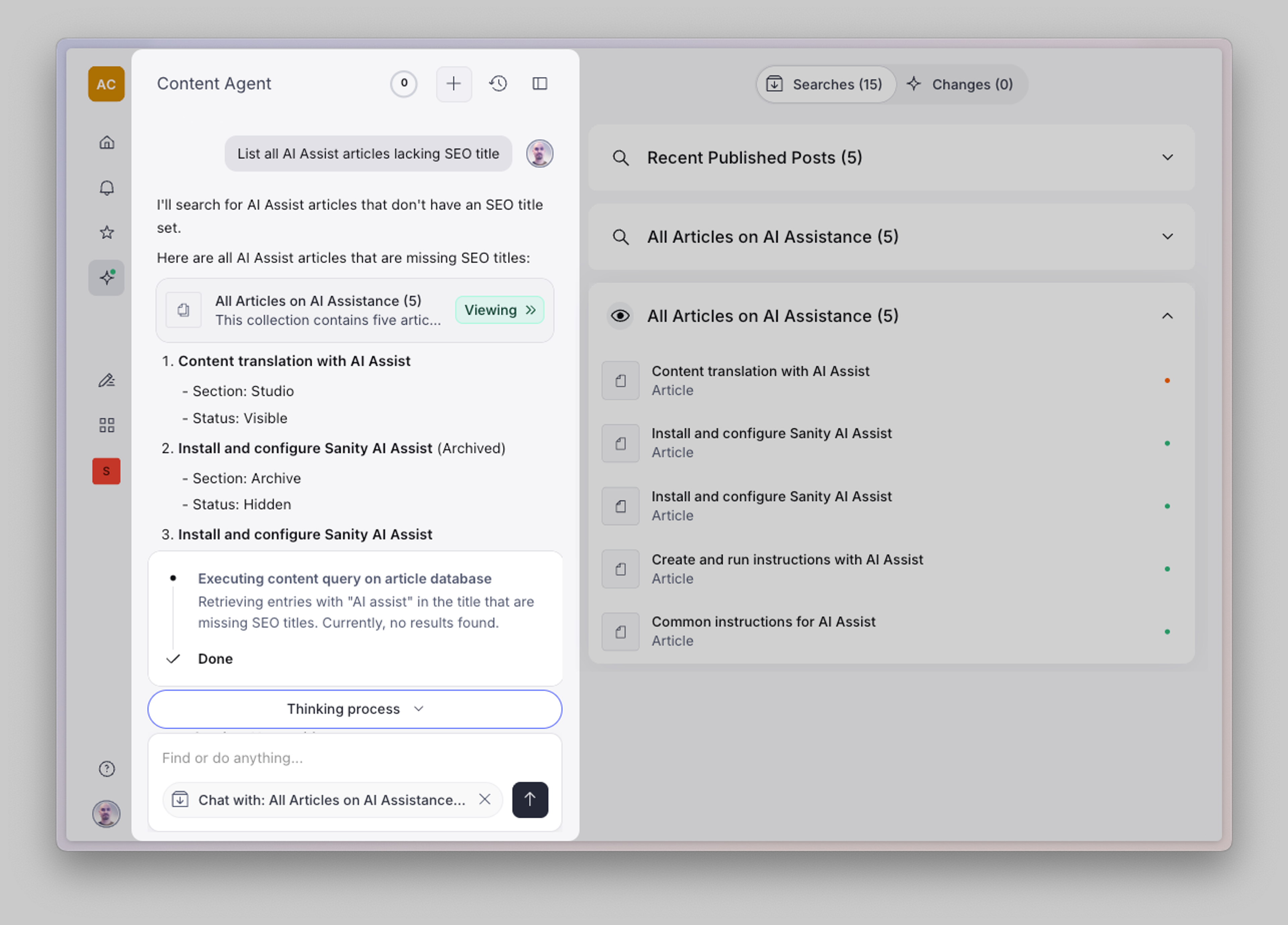
Searches are read operations. When you ask the agent to find, search, analyze, or answer questions about your content, that's a search.
Examples:
- "Find all blog posts from last month"
- "Which pages are missing meta descriptions?"
Changes are write operations. When the agent creates, updates, or generates content, that's a change.
Examples:
- "Translate this article into Spanish"
- "Generate a hero image for this page"
This distinction shapes your review workflow, and the two categories map to the two tabs in the results panel. It is not, however, how usage is billed. Usage is measured in AI Credits, and the split is between messages and tool executions rather than between reading and writing.
Context
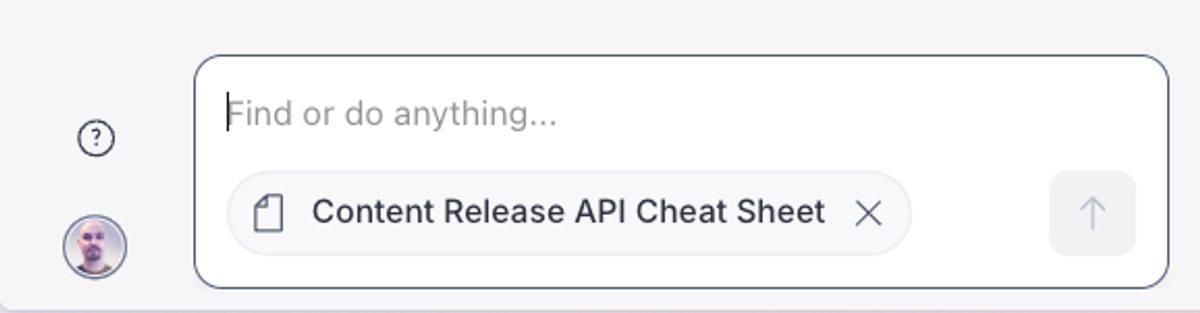
The agent responds based on context. The current context is always shown in the chat input, and updates as you navigate your Studio. The context is provided as a hint for the agent, but you can use natural language to instruct it how to use that information.
The agent understands context naturally throughout your conversation:
- When chatting about a document, the agent focuses on it automatically
- As you search or filter content, those results become your new context
- The agent can consider your entire project when no specific context is set
- You can always see what context the agent is using at the bottom of the chat input, and change it if needed
Custom instructions
Custom instructions are standing guidelines the agent applies to every conversation, covering things like tone of voice, preferred language, or how detailed you want responses to be. You set them in two places:
- Organization: in Manage, select your organization, then Settings › Content Agent in the sidebar. These apply to everyone in the organization, and only an organization administrator can change them.
- User: Dashboard > Account settings > Content Agent. These apply to your own conversations, and you set them separately for each organization you belong to.
The two levels combine rather than compete: your instructions are added to your organization's, not substituted for them. Each level holds up to five instructions, and the agent treats all of them as guidance rather than hard rules. Edits take effect on your next message, including in a conversation that's already open.
For the steps and guidance on writing instructions the agent follows, see Set custom instructions for the Content Agent.
How usage affects cost
Each message you send carries a query cost, and every tool execution the agent runs adds a cost on top of that. A single message can trigger several tool executions, so a broad request costs more than a narrow one. The number of executions depends on the amount and type of work required; it is not a fixed number per document. Having the agent do complex work across many documents can consume a lot of credits in a short time.
Do a test run
Concerned about cost? Try your prompt on a few documents first by selecting them from the results before running it on a large set of documents.
For rates, spending limits, and cost examples, see How AI Credits work.
Request size and batching
Multi-document work is what the agent is for. The limit you're most likely to meet is the size of a single request, not the total amount of content you can change: work that fails as one monolithic command often succeeds when you split it into batches.
A request grows as it multiplies dimensions. Translating five documents into five locales is 25 fields in a single request. Structural edits inside Portable Text, like inserting or reordering blocks rather than replacing a plain-text value, add to that because the agent has to track each document's structure to place every change correctly.
Signs a single request is too large:
- The run takes far longer than the same work on a single document, without finishing.
- The run ends with no proposed changes in the Changes tab.
To work through a large set, split it into smaller batches and run one batch at a time, reviewing and confirming each batch's changes before you start the next. Start each batch in a new chat: context accumulates through a conversation as you search and filter, so a fresh chat keeps the previous batch out of the new request.
No single batch size fits every request. A batch that sets one plain-text field can be much larger than a batch that rewrites Portable Text across several locales, so size your batches to the kind of change you're making rather than to a fixed document count.
When you confirm changes into a content release rather than into drafts, the release's own limits apply: a release holds at most 1,000 document versions and 100 MB of JSON. See Technical limits.
For jobs in the thousands of documents, or for changes you want to run repeatedly, Agent Actions or async requests with the Content Agent AI fit better than a conversational request.
The interface
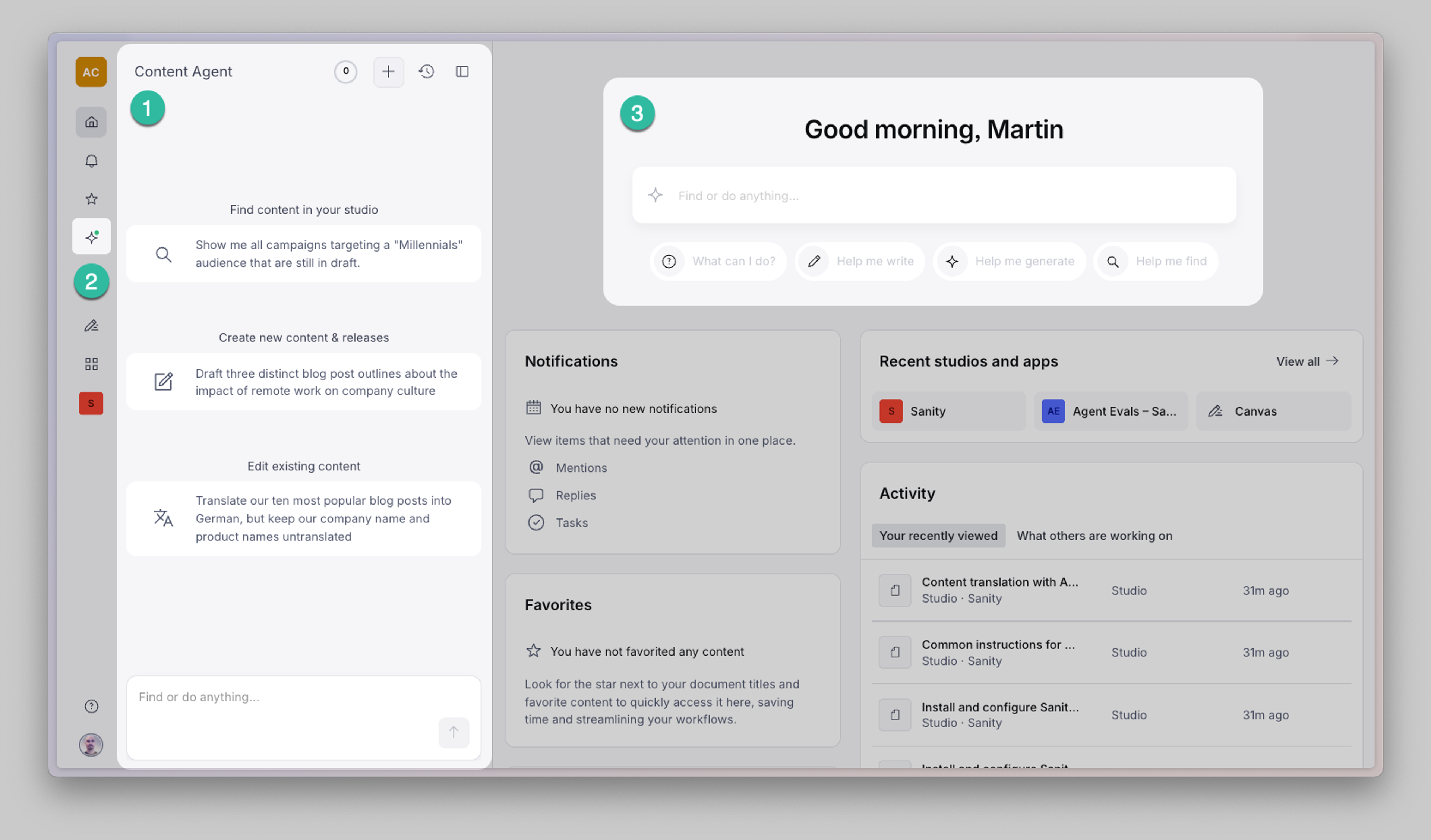
The Content Agent is available from your organization's dashboard across all your projects.
Find the agent and start a chat
- Agent panel: the Content Agent lives in a dedicated side panel in the dashboard, which can be collapsed and expanded as needed.
- Dashboard side menu: toggle the agent sidebar from the dashboard side menu.
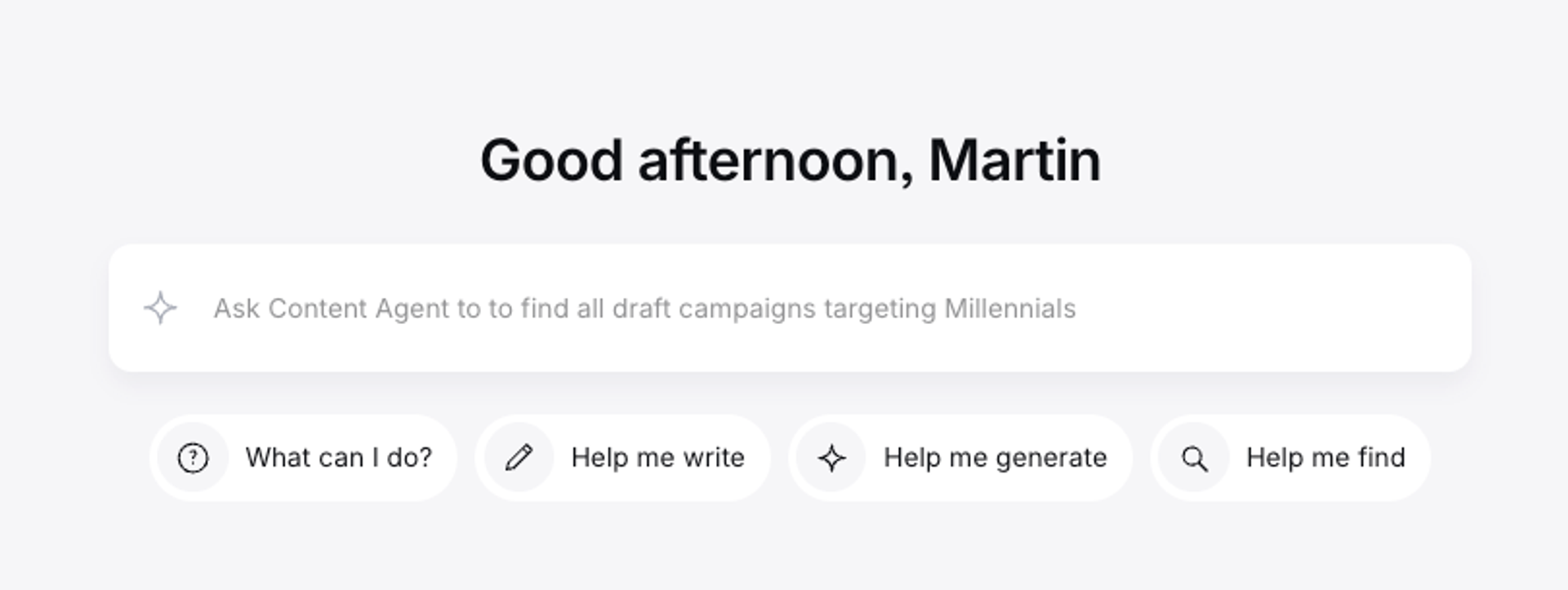
- Dashboard chat input: start a chat from the chat input at the top of the dashboard home page.
What's in the agent panel
Your chat with the agent. Responses, document lists, and status updates appear here.
The input field at the bottom shows your current context (read more about context). Remove or change context anytime. This is also where you can review a log of the agent's actions and reasoning. You can attach files directly in the chat using the attachment button. Supported file types: PDF, TXT, Markdown, HTML, CSV, TSV, XML, JSON, DOCX, XLS, XLSX, JPEG, PNG, GIF, and WebP (up to 32 MB per file). Attachments belong to the thread rather than to a single message, so the agent can refer back to them later in the conversation.
Results panel
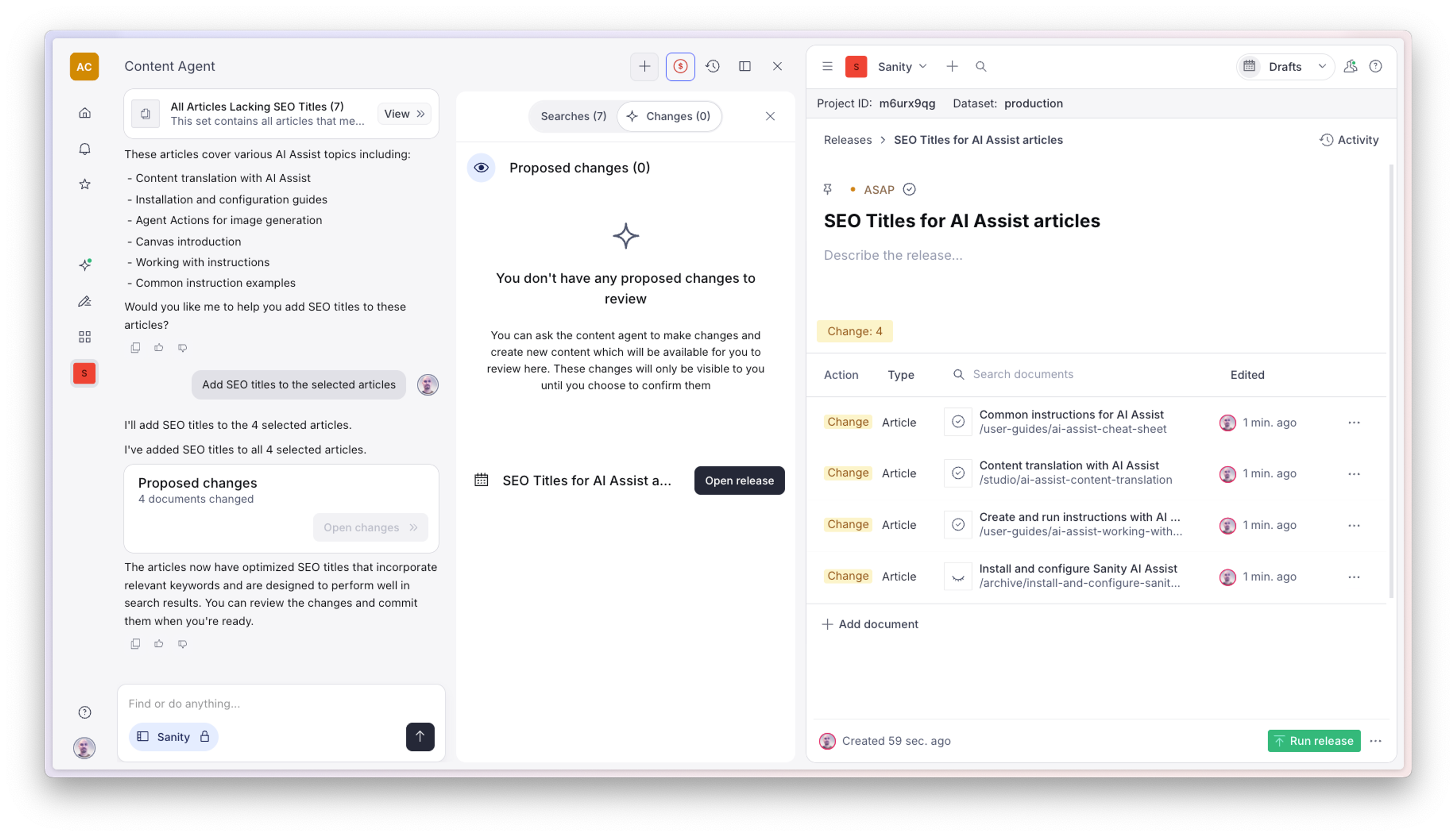
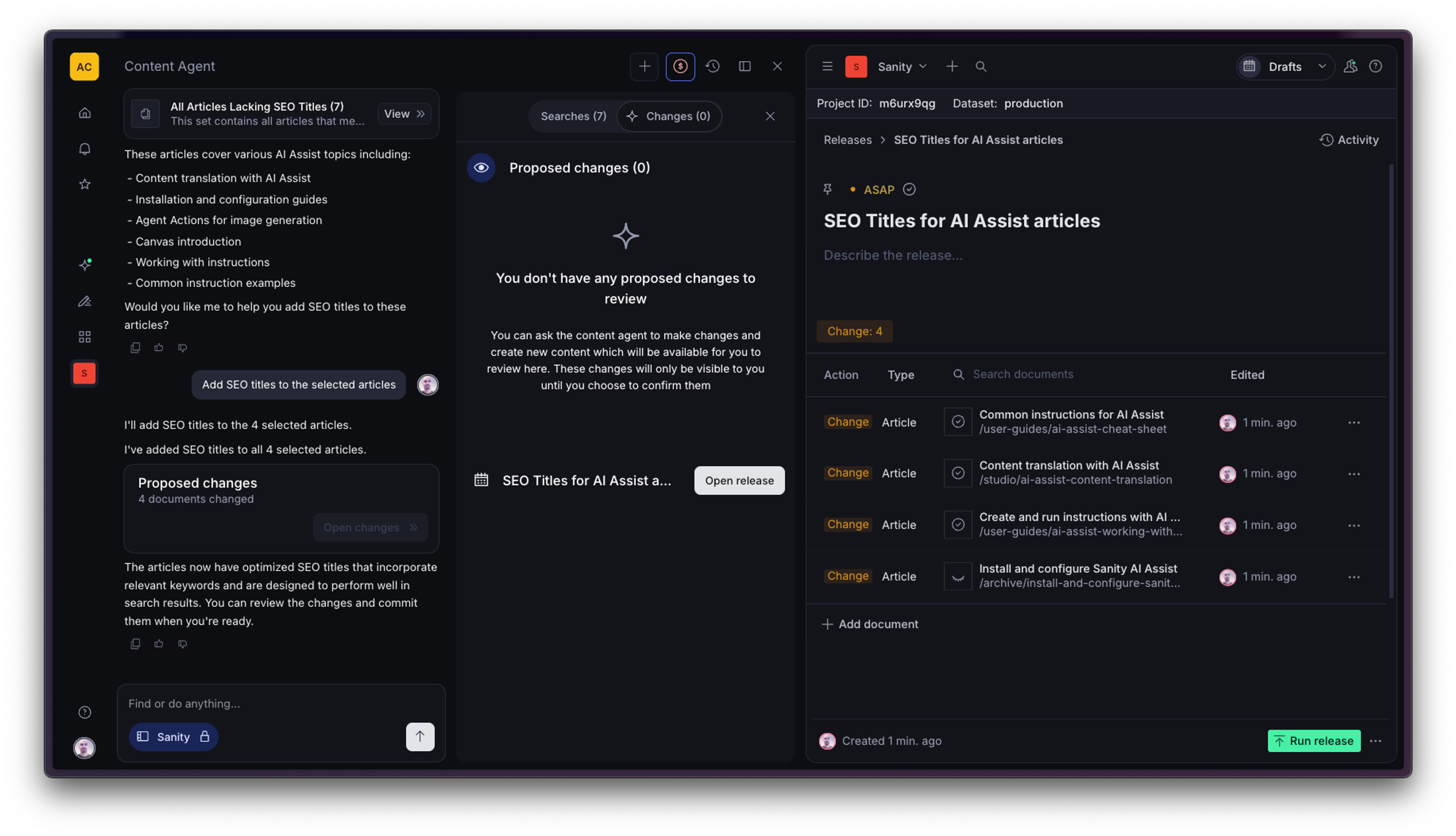
The right-hand panel displays what the Content Agent has found or proposed changes for you to review. Toggle between two tabs:
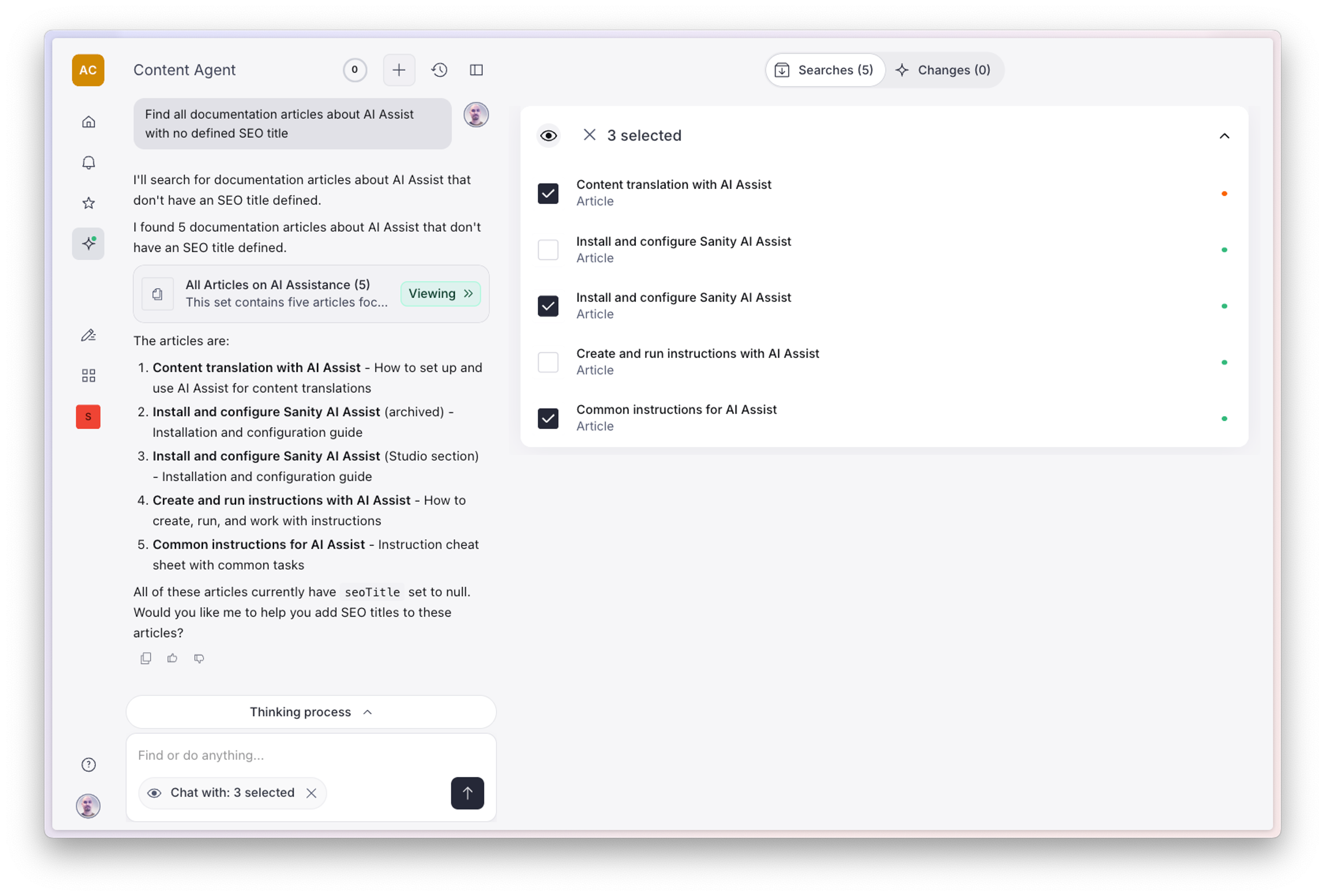
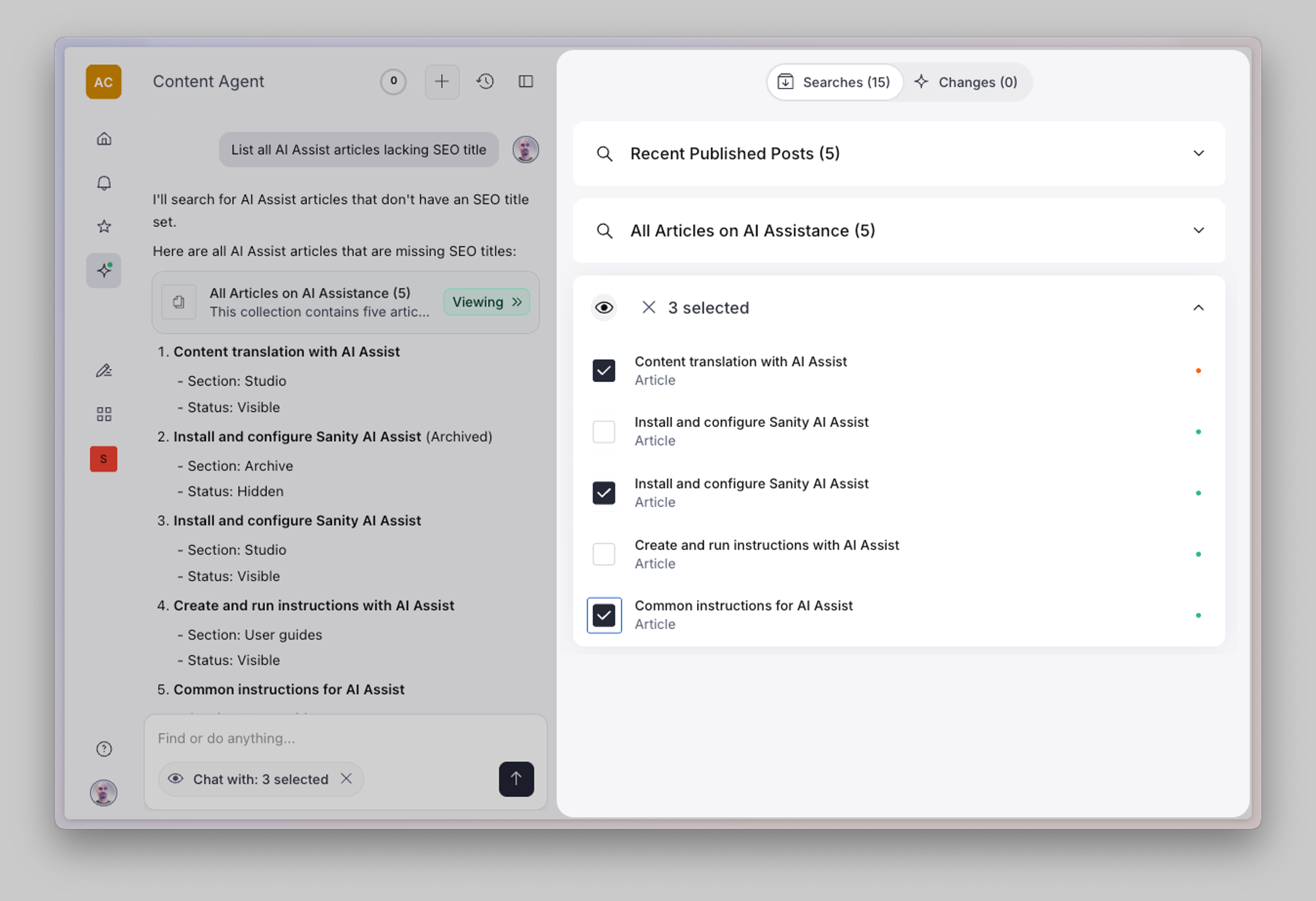
- Searches: view documents matching your query criteria. Select specific items using checkboxes to include them in your next action. This helps you narrow down exactly which content you want to work with, and is also useful for testing your intended changes before applying them to large sets of documents. Once you're happy with your plan, you can direct the agent to work on the whole set of documents by deselecting your subset.
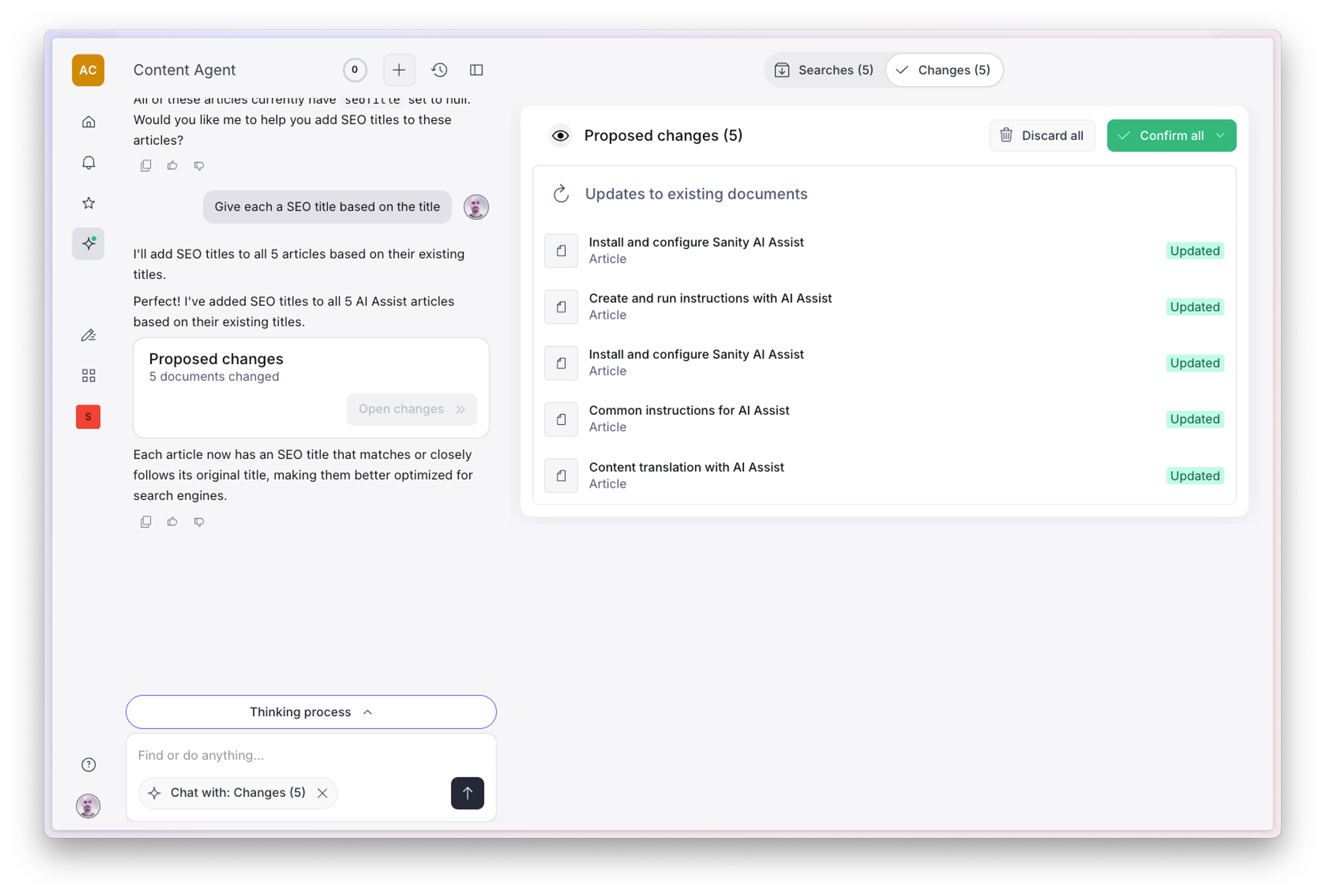
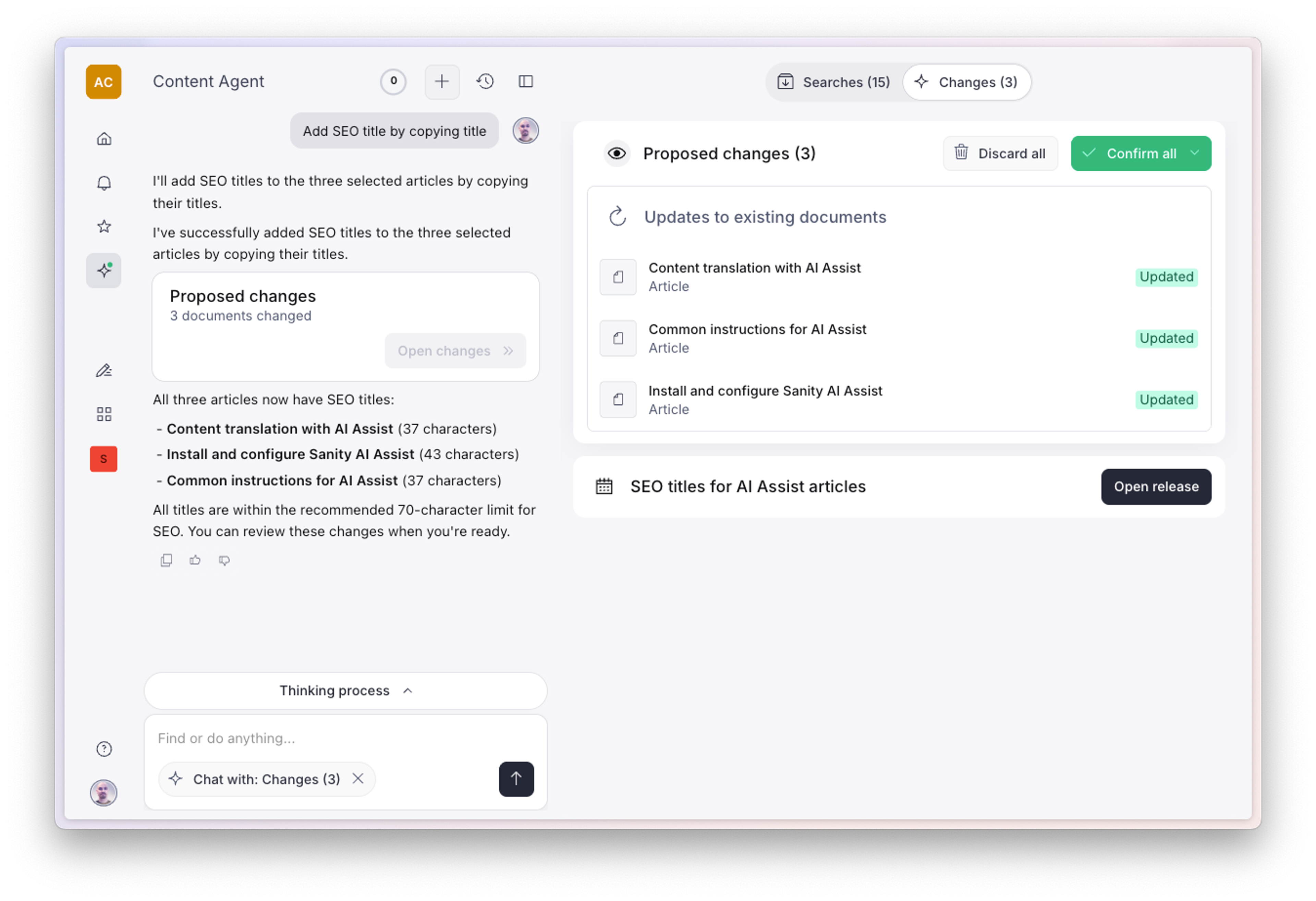
- Changes: pending edits awaiting approval.
The changes displayed here are prepared but not executed. At this stage, no drafts have been created, and no content has been modified in your project.
No history?
Until you confirm them, the agent's proposed changes don't appear in document history, content releases, or search results. They are not private, however; they remain readable through the API by anyone with access to the project.
Once you're satisfied with the proposed changes, you can choose to:
- Confirm all changes to create drafts
- Add the changes to a content release
- Discard the changes if they don't meet your requirements
This preview step gives you full control to review exactly what the Content Agent will modify before any actual changes are made to your content.
A practical example
This example walks through a complete content operation assisted by the agent, in a project with common content types such as articles and blog posts.
Search
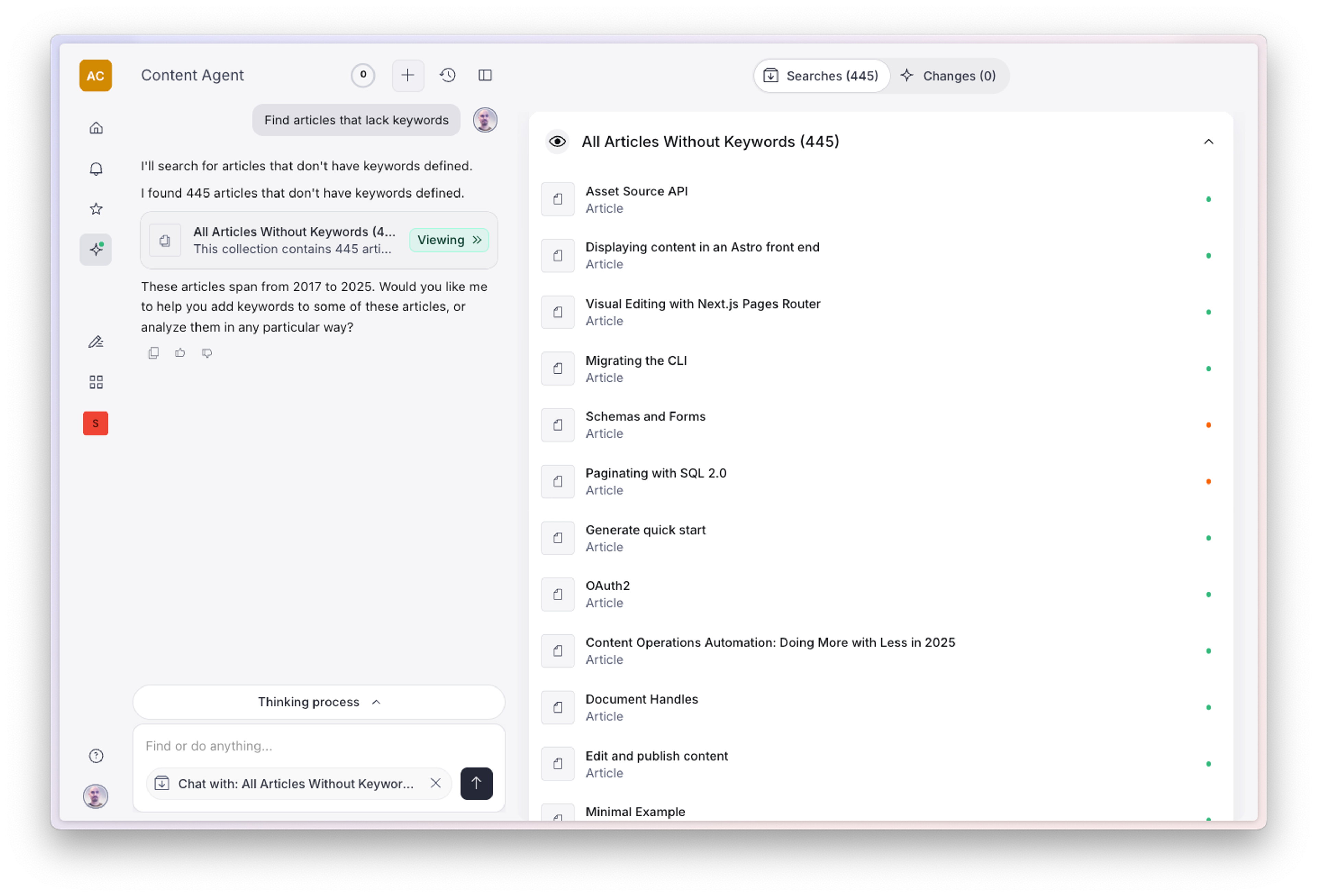
Start by asking the agent to find articles that lack keywords.
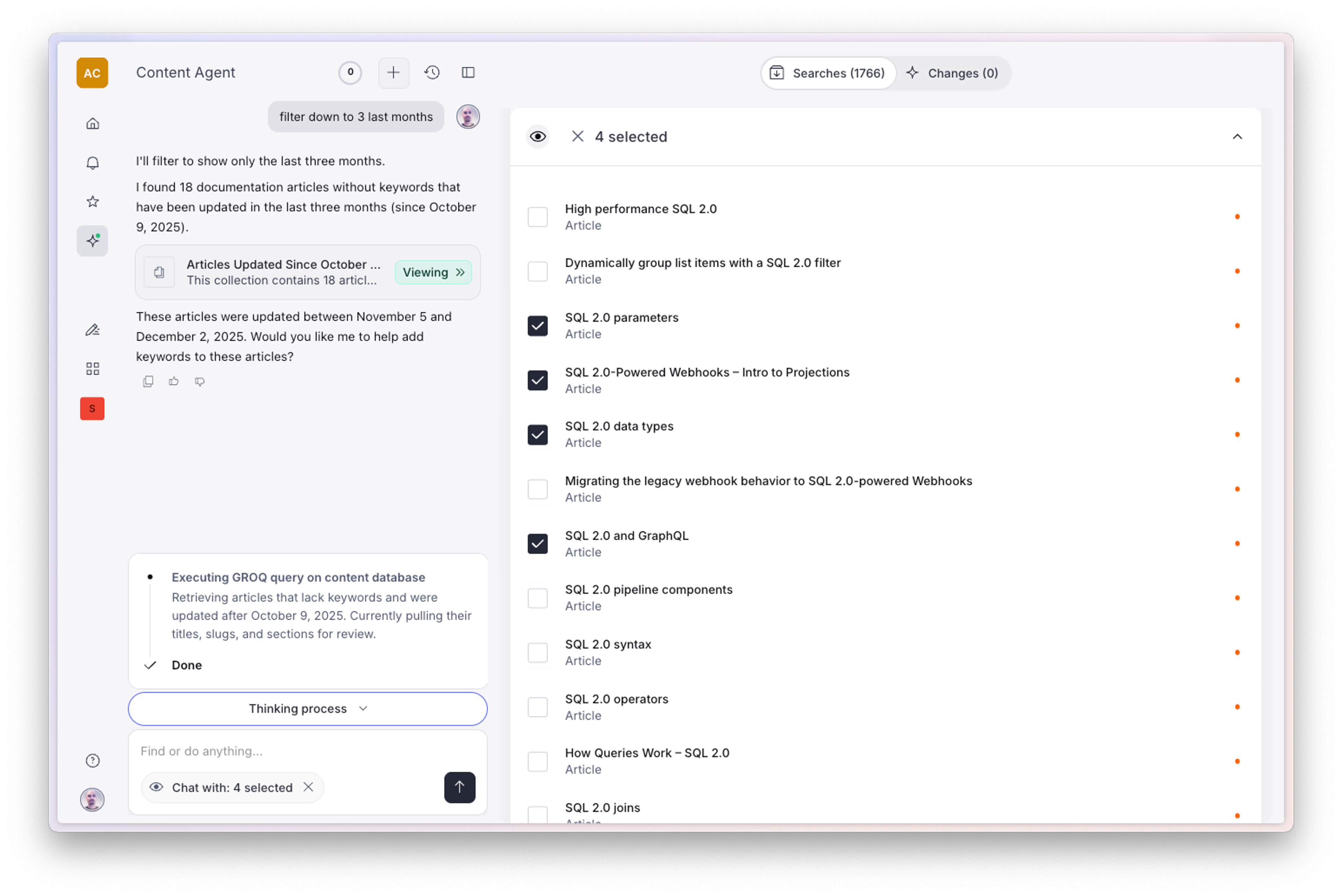
The agent found a large number of articles without keywords, and noted that some of them are old. Since every change the agent makes consumes credits, we don't want to indiscriminately update all 400+ matches. Next, filter the results by telling the agent to focus only on articles from the last couple of months.
This narrows the search down to 18 documents, a more manageable set. You can reduce the set further by checking individual matches on or off in the results view.
You can also narrow the set by asking about it rather than filtering again. Follow-up questions like "Which of these are still published?" refine the selection conversationally, and each answer becomes your new context.
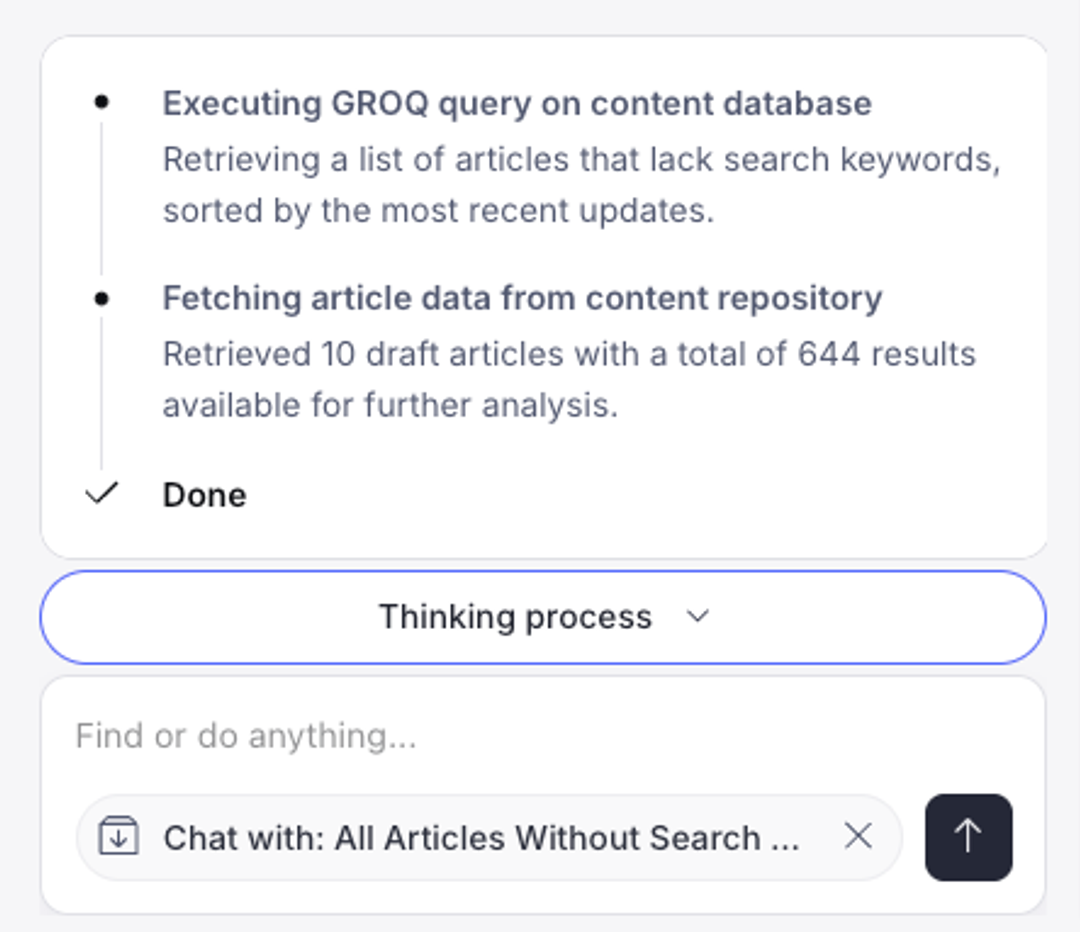
To see how the agent reasoned when fetching your results, open the expandable Thinking process log above the chat input.
Change
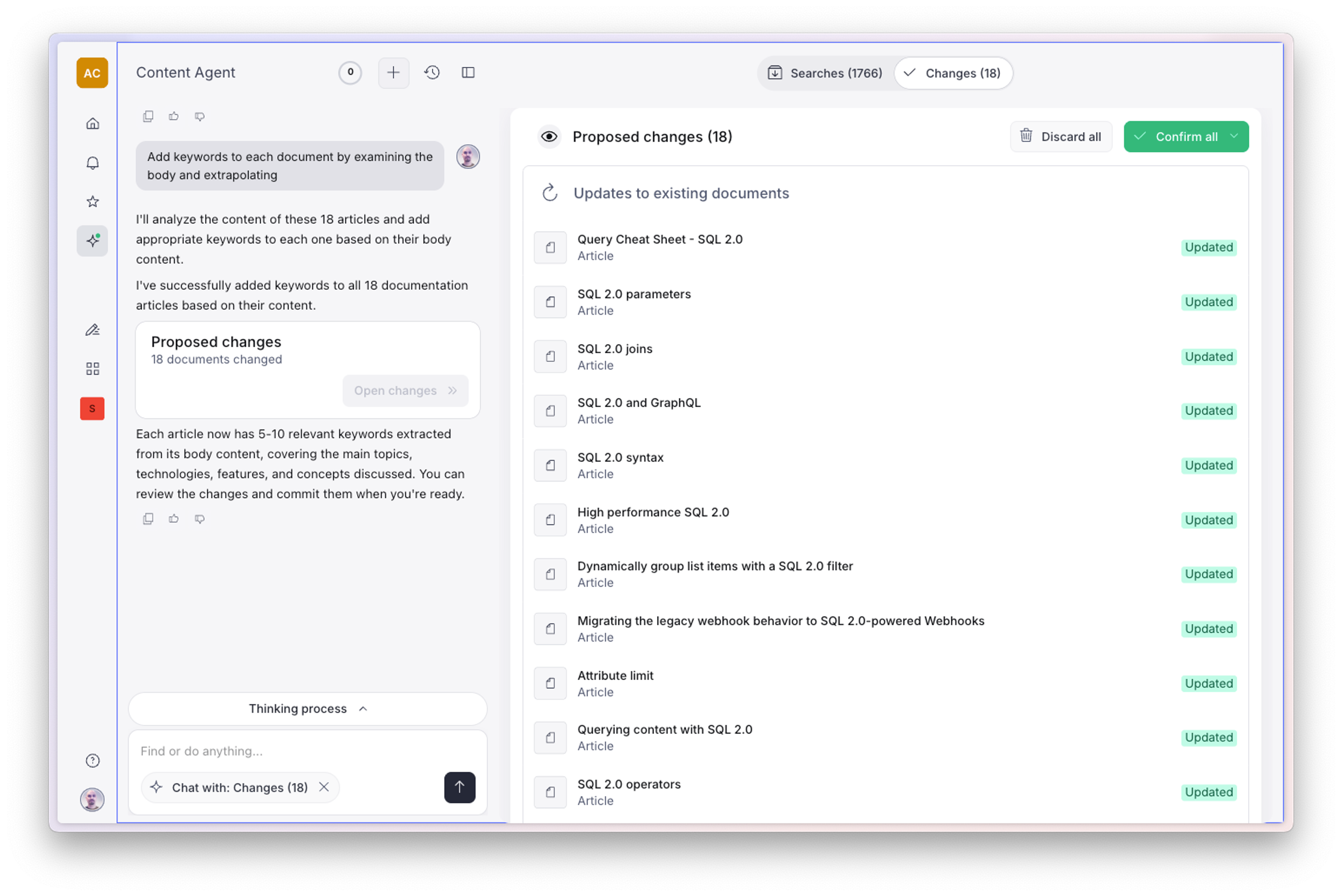
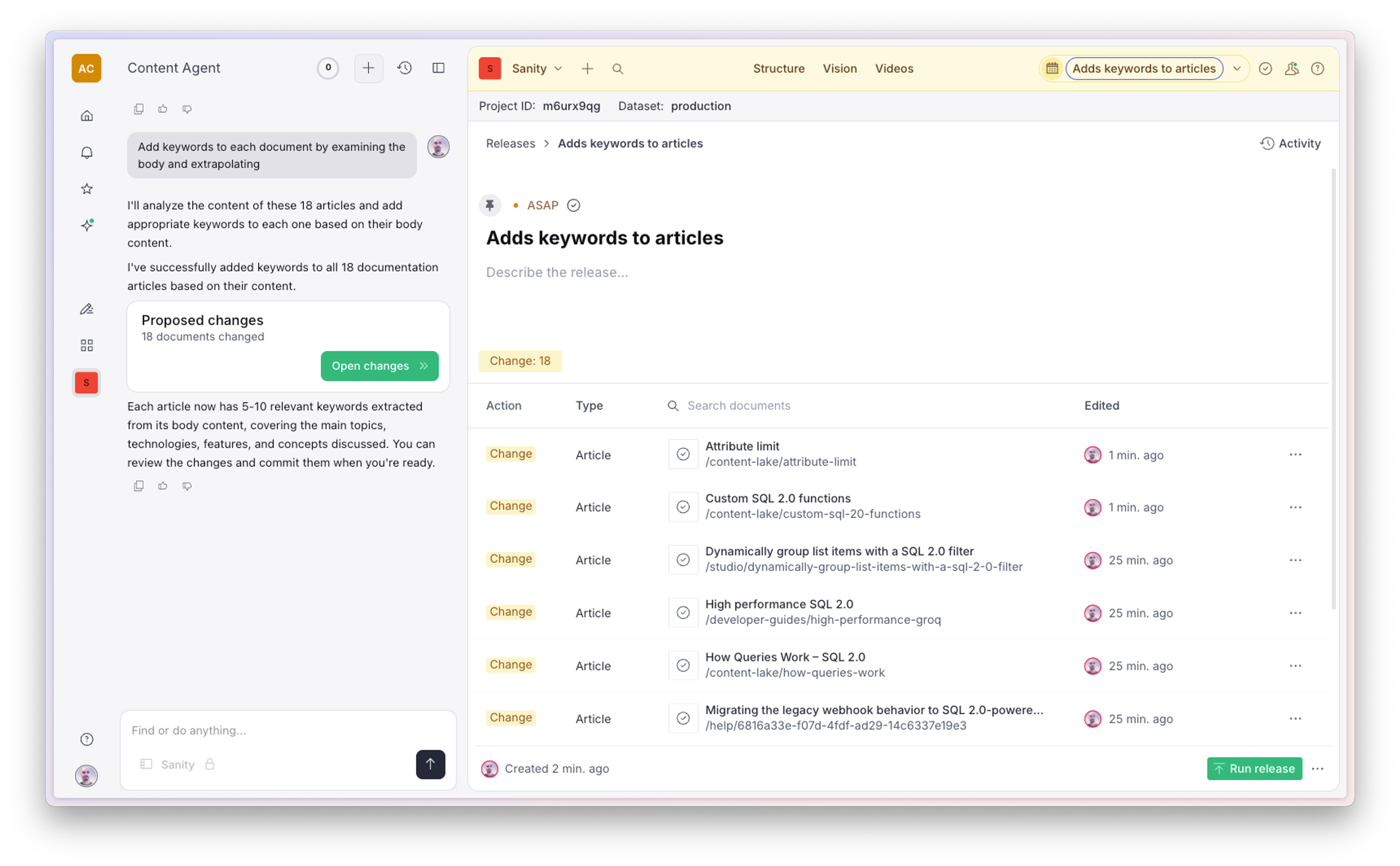
Once you're happy with the result, ask the agent to apply one or more changes to the selected set, in this case the articles that need keywords.
The agent will plan out the changes and report back in the Changes tab. Even at this point, the changes are still proposals. All changes require your approval, so you review each proposed edit before anything is applied.
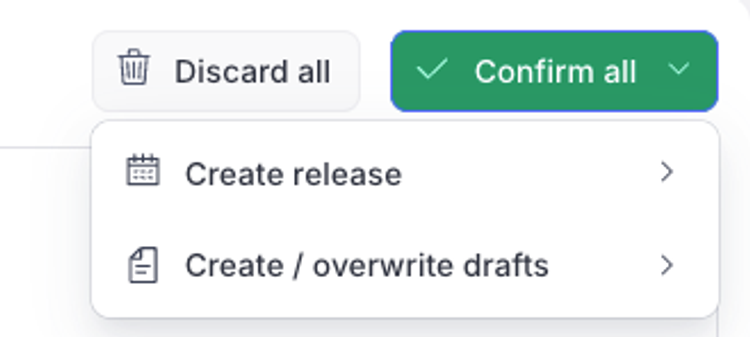
When you are happy, click the Confirm button. Depending on your preferred workflow, select either to create drafts for the relevant documents or to put all the changes into a content release. You can now review the drafted changes and publish when ready.
What you can do
For practical tips and instructions on what you can do with Content Agent, see the Content Agent quick start guide.
Limitations
- Limited local file support. The agent works with content in your dataset or available on the web. You can attach files in the chat (see the supported file types above, up to 32 MB each), but the agent can't browse your local filesystem.
- Won't publish. The agent creates drafts or adds the changes to a content release. Publishing is always a separate step that you take yourself, so a human stays in the loop for final review.
- No rollback within the agent. Use Studio's document history to revert changes.
- Proposed changes stay separate from your document history until you review and accept them, so you won't end up with half-applied edits.
- No deletion. For safety, the agent cannot delete documents.
- No Canvas support. The agent can't read or modify content in Canvas. Media Library is supported when your organization has the Media Library application enabled, though the agent can't delete assets.
FAQs
Why didn't the agent find something? Try rephrasing your request or adding more context. Check the Thinking process log for misunderstandings. Confirm you have permission to view the document.
Why didn't my document update? The agent proposes changes but doesn't apply them automatically. Look for the review prompt and approve the update.
Does the agent remember past conversations? You can revisit past chats from the agent panel, but context doesn't carry over between sessions automatically.
How is my content used? Conversations may be stored for up to 30 days to improve the system. See our Terms of Service and AI Terms of Service for details.
Which Sanity AI tool should I use?
- Content Agent is a conversational assistant in the Dashboard. Use it for project-wide tasks: searching, auditing, analyzing patterns, and bulk updates.
- AI Assist is a Studio plugin with inline AI help. Use it for quick, field-level tasks, such as rewriting a paragraph.
- Agent Actions are developer APIs for running AI tasks automatically. Use them for migrations, localization pipelines, or background automation.