Meet the Dashboard
The central hub for all your content operations.
Find your dashboard
To find your organization’s dashboard, visit the Sanity welcome page.
Dashboard at a glance
The Sanity Dashboard is the central hub for your organization's content operations. Here you'll find your deployed studios, custom apps, and official Sanity apps like Canvas and Media Library.
Your dashboard is centered around your organization and gives access to deployed studios and apps within the organization, across projects and datasets.
What about the dashboard plugin?
If the name sounds familiar, that’s because the Sanity ecosystem already has a dashboard: the official dashboard plugin for Sanity Studio. That plugin remains available for in-studio dashboards.
Tour the dashboard interface
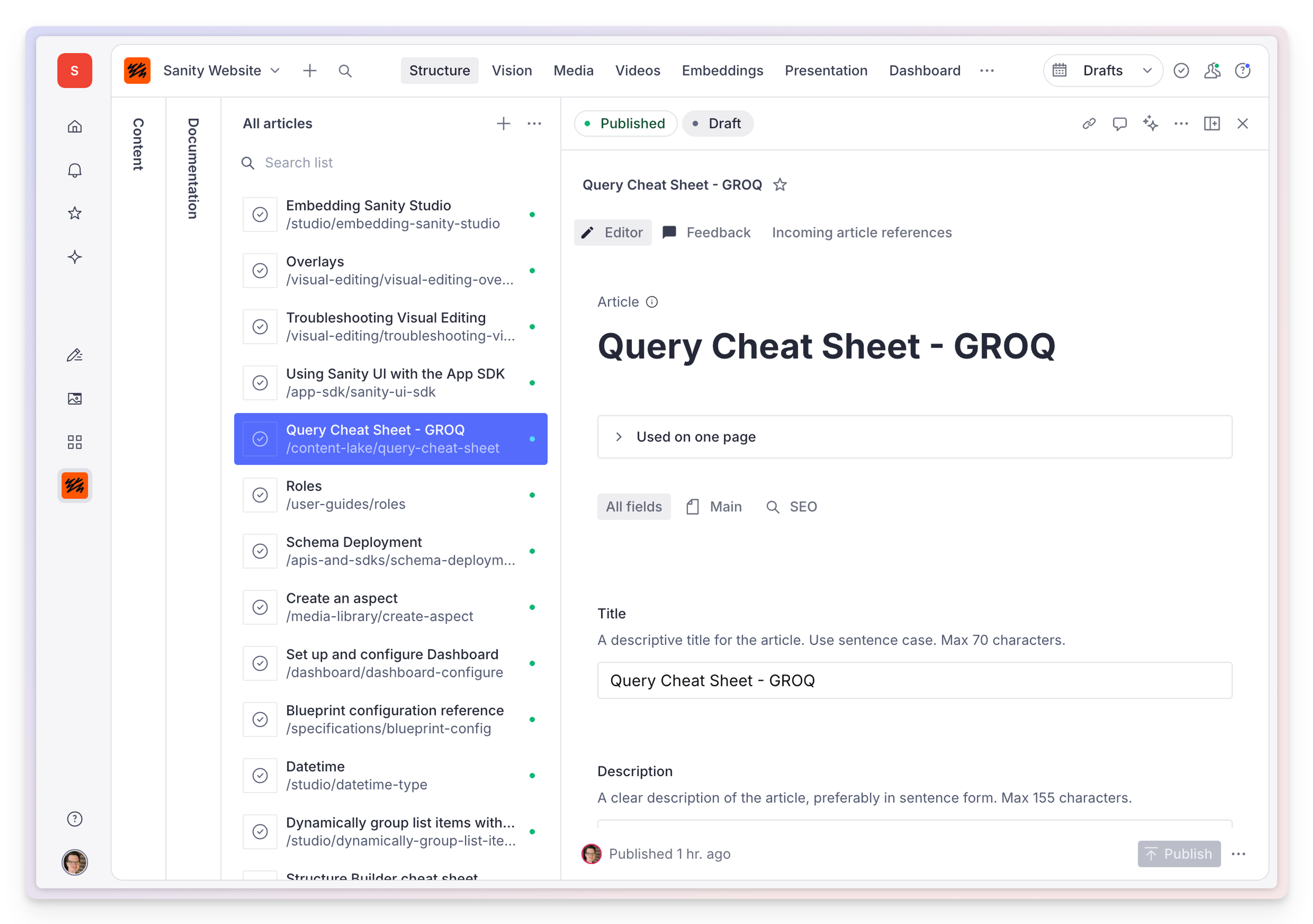
The dashboard has four regions, numbered in the screenshot: the main content area, the dashboard navigation and expanding panels, the application navigation, and account settings and help.
1. Main content area
The main content area adapts to whatever app you're working in, such as a studio.
If there is no active app, this area defaults to show you links to your most likely destinations, favorites, and insights about your content.
2. Dashboard navigation and expanding panels
The top section in the left sidebar is where you'll switch between your organizations and toggle panels like notifications, favorites, or the Content Agent.
Organization switcher
Click your organization name to bring up a list of the organizations available to you. You can also open Sanity Manage for your organization from here.
Home
Returns the dashboard to the Home screen.
Notifications
Opens the notifications panel to display notifications, like comments or tasks, across your studios and Sanity apps.
Favorites
Opens the favorites panel to display any documents you’ve favorited across studios and Sanity apps. You can add a document to your favorites any time you see a star icon.
Content Agent
If your organization has Content Agent enabled, you can open it from here at any time. Content Agent lets you ask questions about your data, make changes, and more.
You can also use Content Agent from Slack. When you share a Dashboard URL in a Slack workspace with the Sanity app installed, Slack displays a rich preview card showing the document title, type, and status. See Content Agent for Slack for details.
3. Application navigation
The application navigation section lets you navigate between Sanity applications, your studios, and your custom apps.
Canvas and Media Library
The official Sanity apps available to your organization, such as Canvas and Media Library, appear here. Selecting one opens it in the main section of the dashboard.
Studios and custom apps
Below the official Sanity apps, you'll find any custom apps and studios deployed by your organization. If you can't find an app or studio you expected to see here, it may not be registered yet. Studios deployed to Sanity hosting appear automatically.
Self-hosted studios need to be registered
A studio you host yourself does not appear in Dashboard until you register it. Deploying the schema and serving the manifest from your own domain are not enough on their own. Run npx sanity@latest deploy --external --url https://example.com/studio from the studio folder. Registration itself persists, but repeat the command on every deployment to keep the schema and manifest current.
The same gap affects other surfaces. An unregistered studio cannot be resolved from the Media Library "in use" dialog either, so reference rows there will not open. See Set up and configure Dashboard for the full setup.
You can pin any studio or app from the Studios & Apps page by selecting the pin icon. Pinning is per person: it does not pin the studio or app for everyone in your organization.
4. Account settings and help
In the bottom left sidebar section you’ll find your user account settings and useful links for getting help and leaving feedback.
Help and feedback
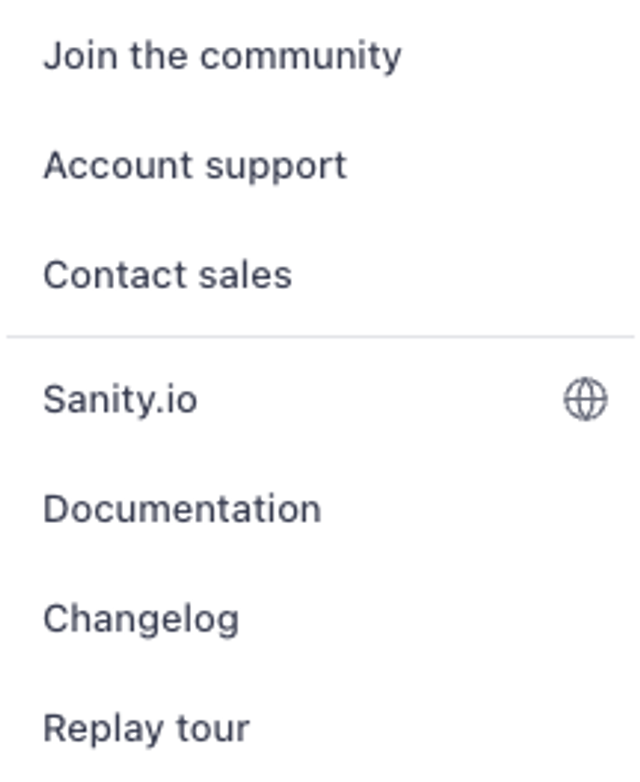
Select the question mark icon to open the help and feedback menu. It links to support, the documentation, and the Sanity community.
Account settings
Select your profile image to open a menu with dashboard-wide theme options, a link to your account settings, and the option to sign out.
Light, dark, and system theme
If you choose light or dark mode in a studio, the studio saves that choice in your browser and keeps it when you open the studio in Dashboard. The studio’s own appearance menu isn’t available inside Dashboard. To reset the theme, open the studio at its own URL, outside Dashboard, then select your profile image and select System. You can also clear the studio’s local storage for its origin in your browser.