Asset visibility
Control asset access using visibility settings and enable secure delivery using signed URLs.
Asset visibility controls how individual assets like images and files can be accessed from Sanity’s Content Delivery Network (CDN). This feature ensures Media Library can securely manage confidential assets, embargoed launches, and other sensitive or licensed materials. Visibility and signed URLs apply only to Media Library assets. Assets stored in a project's dataset are always public on the CDN, even when the dataset is private.
- Public: Anyone with the asset's URL or identifier can request and view it.
- Private: Access is restricted to authenticated Media Library and Studio users. External controlled access can be granted using signed URLs.
Video assets
Video assets support private visibility. Private videos include thumbnails, timeline scrubbing, and full-screen previews in Media Library and Studio.
Change an asset's visibility
- Select the asset in Media Library.
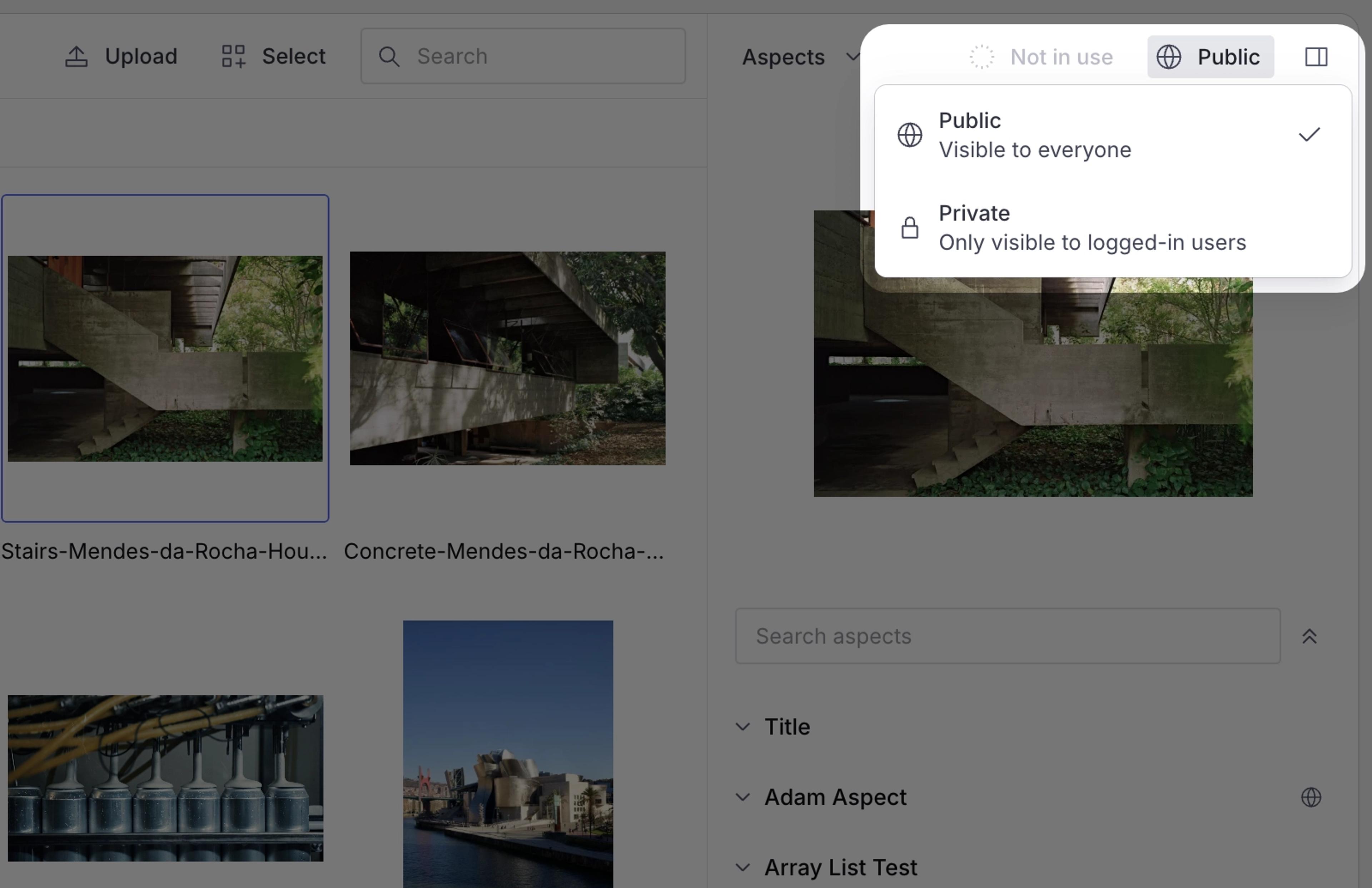
- In the asset sidebar, select the visibility indicator. If the asset is public, it displays Public with a globe icon. If the asset is private, it displays Private with a lock icon.
- Select the visibility you want from the list in the popover.
Switching visibility does not require a Publish action for changes to take effect.
Set visibility when you upload
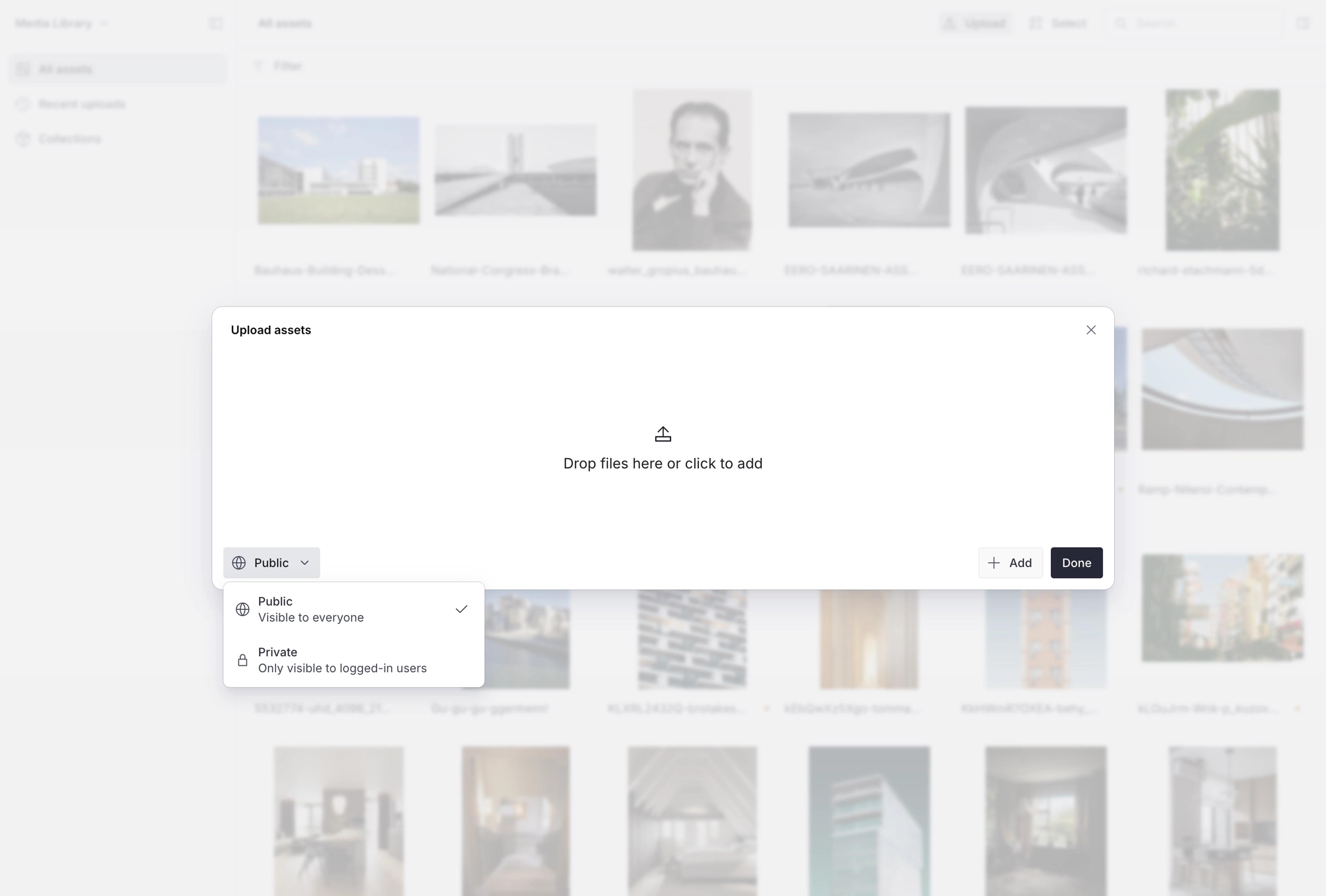
By default, assets are uploaded with public visibility. To change this for your session, select Upload at the top of the asset grid and use the visibility switcher in the upload modal before uploading.
Caching and propagation
When switching an asset's visibility from public to private, the CDN may continue serving cached responses for up to 30 days. To minimize exposure, set sensitive assets to private before upload.
Signed URLs
Signed URLs provide a secure way to deliver private assets through Sanity's CDN. Each URL includes a signature that both validates access and ensures the asset is served only with the exact transformations specified in the URL. This prevents unauthorized use, hotlinking, and unapproved image manipulation.
To display images with private visibility using signed URLs, the @sanity/image-url package exports an extended image URL builder with signing methods from the @sanity/image-url/signed export path.
For non-image assets such as PDFs and audio files, use the lower-level @sanity/signed-urls package to create a signed version of a given asset URL.
Check the READMEs of both packages for more details on signing URLs.
Video assets don't use signing keys. To play a private video, get signed URLs from the playback info endpoint. See "Private videos and signed URLs" in Working with video.
Keep signing keys server-side
Sign URLs on the server only. Never expose your private signing key in client-side code.
Signing keys
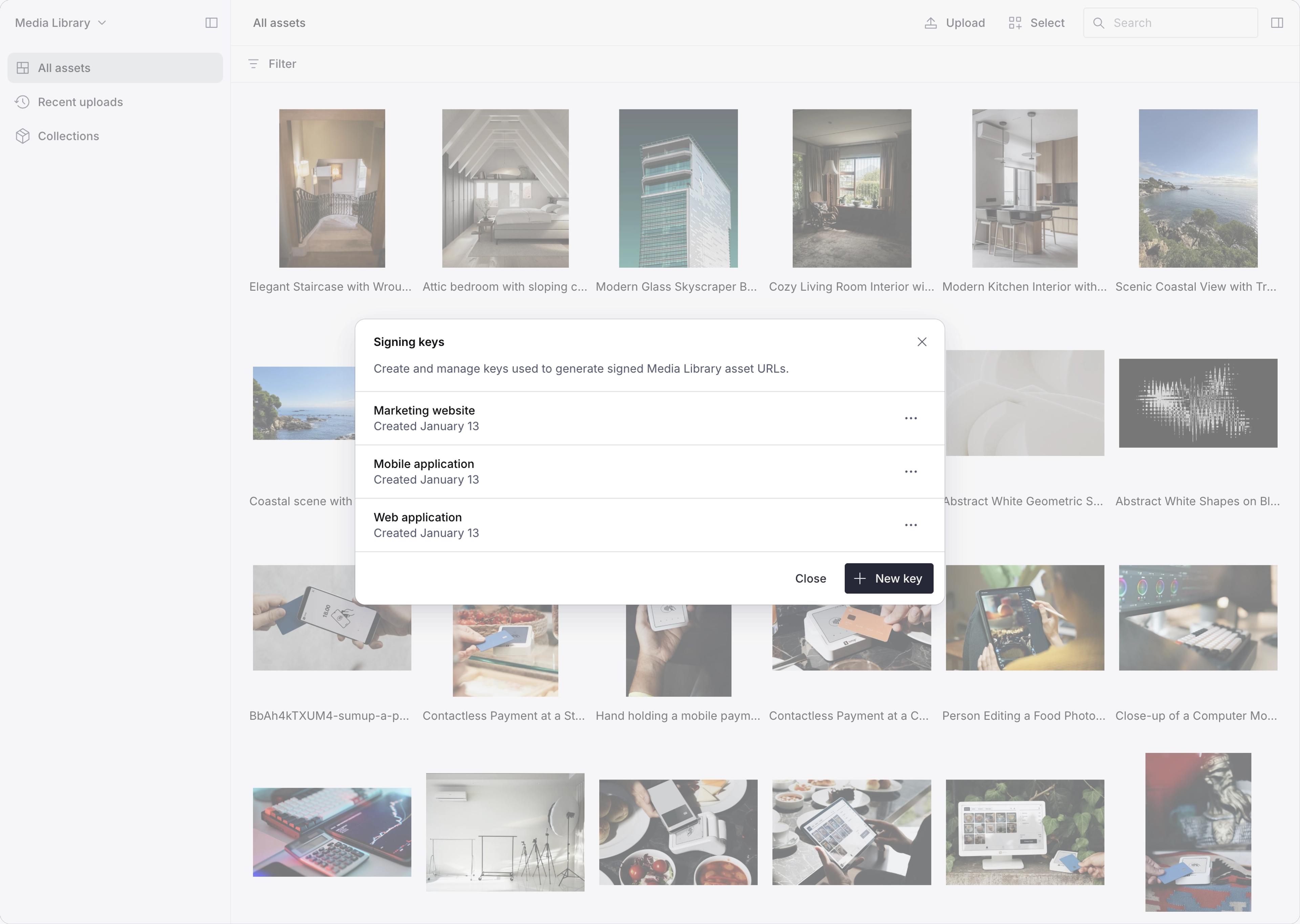
Signing URLs requires providing a private key, an associated key ID, and an expiry time to whichever helper functions you are using. Signing keys are managed in the Media Library itself:
- At the top of the left panel, click the Media Library dropdown.
- Select Signing keys.