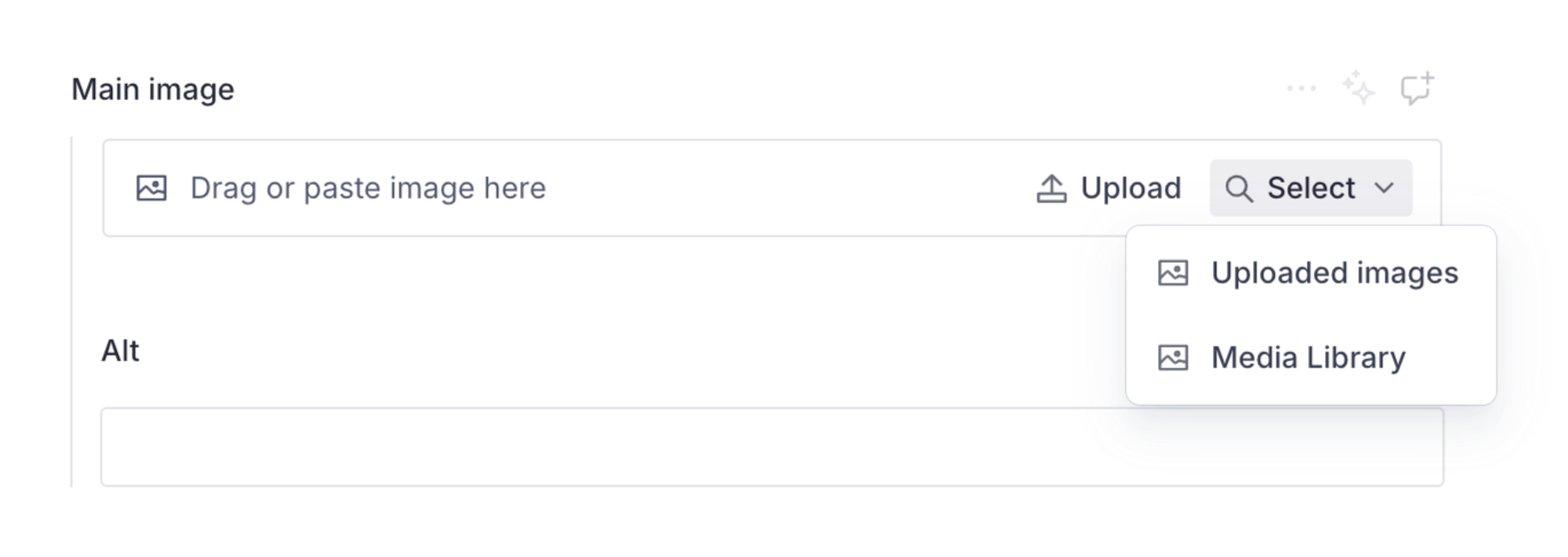
Configure Studio
Enable Media Library in your Studios.
The Media Library app allows content managers to share a central store of assets.
This is a paid feature
This feature is available as an addon for certain Enterprise plans. Talk to sales to learn more.
You can enable Media Library integration with Studio to allow editors to select assets from the library for use in their documents, and upload new files and images to the library.
In this guide, you'll learn to configure Studio to support integration with Media Library.
Prerequisites
- Studio v3.82.0 or later. Learn how to upgrade your Studios.
Update the Studio configuration file
Enable Media Library support by setting mediaLibrary.enabled to true in your studio.config.ts file.
Token-based authentication should also be enabled by setting auth.loginMode to 'token' to ensure full functionality.
import { defineConfig } from 'sanity'

export default defineConfig({
  projectId: 'YOUR_PROJECT_ID',
  dataset: '<dataset>',
  mediaLibrary: {
    enabled: true,
  },
  auth: {
    loginMethod: 'token',
  },
  plugins: [structureTool()],
  schema: {
    // ...
  }
})
Authentication
Some Media Library features are unsupported when using cookie-based authentication. To ensure full functionality, we strongly recommend using token-based authentication.
When cookie-based authentication is detected, a warning banner will be displayed in the Media Library.
Currently unsupported features:
- Previewing private assets, both in Studio and when selecting assets from the Media Library
- Managing signing keys
- Downloading assets
- Syncing asset version usage
Optional: disable the default source
If you want to move completely to Media Library, you can disable the default media source. Use the form.images.assetSources configuration in your Studio config file (studio.config.ts) to filter the sources.
This example keeps Media Library and any custom sources, but removes the default media select option.
import { defineConfig } from 'sanity'

export default defineConfig({
  // ... rest of config

  mediaLibrary: {
    enabled: true,
  },
  form: {
    // Disable the default for image assets
    image: {
      assetSources: (sources) => sources.filter((source) => source.name !== 'sanity-default')
    },
    // Disable the default for file assets
    file: {
      assetSources: (sources) => sources.filter((source) => source.name !== 'sanity-default')
    }
  },

  // ... rest of config
})
If you'd like to be more explicit and target the Media Library source, you can do so by comparing the source name with sanity-media-library.
Add filters to image type selector
You can add selectable filters to the Studio image type by adding the mediaLibrary option to the image type's options object.
export default defineType({
  name: 'imageWithMediaLibraryFilters',
  title: 'Image with Media Library filter',
  type: 'image',
  options: {
    mediaLibrary: {
      filters: [
        {
          name: 'Has colorDetails aspect',
          query: 'defined(aspects.colorDetails)',
        },
        {
          name: 'Greater than 4000px wide',
          query: 'currentVersion->metadata.dimensions.width > 4000',
        },
      ],
    },
  },
})
Each filter has a name and query. The query is a GROQ query filter that runs against the Media Library dataset. If it returns true, the matching image is displayed.