Field groups
Organize your content editing experience by grouping fields together under tabs.
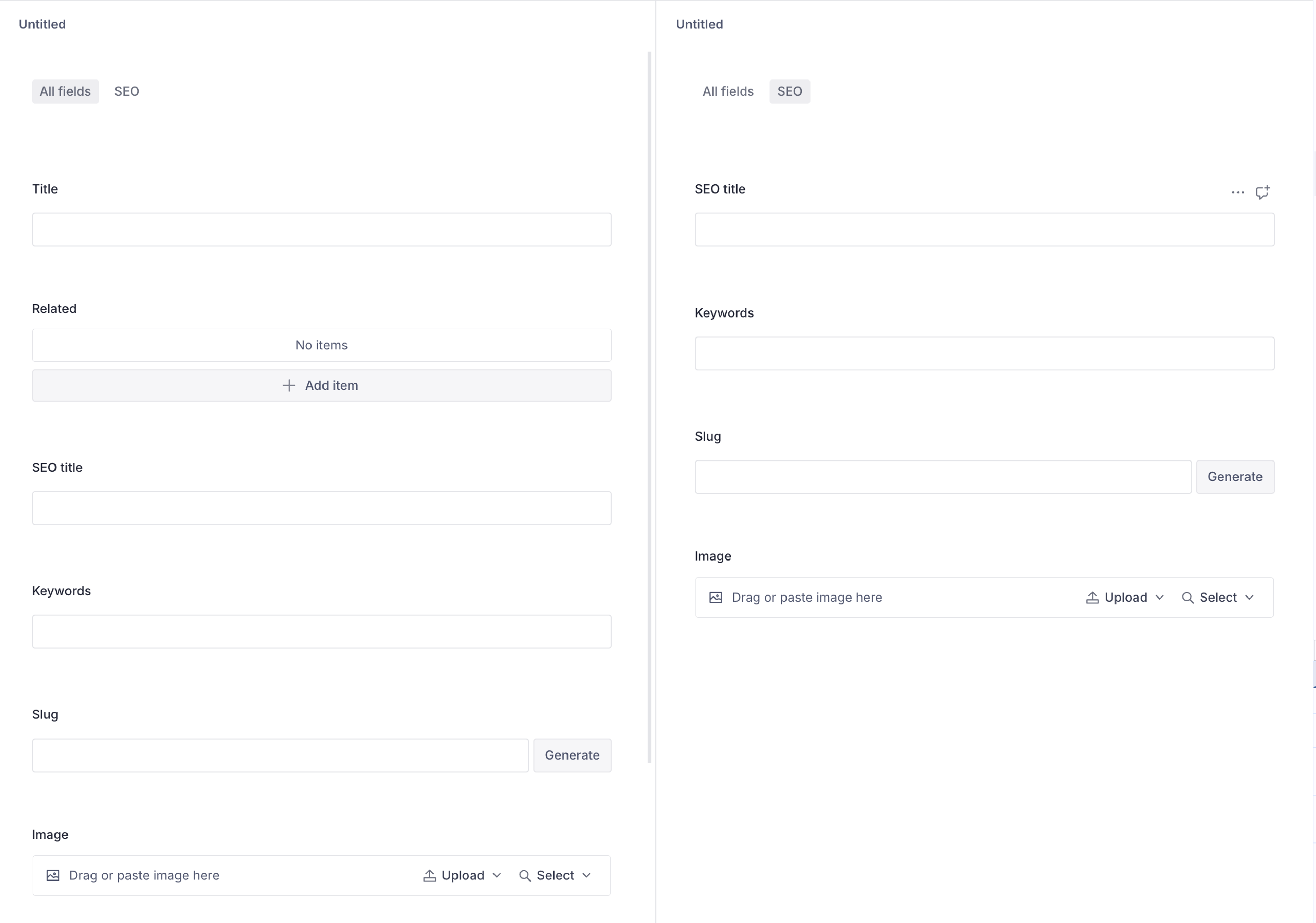
When editing documents in the Studio, it can sometimes be helpful to show certain fields together to provide context and alleviate visual input overload. Document and object types accept a groups property that you use to define the groups you want, and you can assign fields to appear in the groups you have defined using the group property on a field. Fields can also appear in more than one group.
For example, say you have a long document and want to focus on the fields related to SEO. To achieve this, first define an SEO group in your document's properties and then add the property group: 'seo' to a field to make it appear in the SEO group:
Protip
Adding default: true to the object setup in groups: [] will make it the default field group.
The schema to produce the document structure in the example above might look like this (note the groups property on the document itself, as well as the group property on the fields related to SEO):
import {defineField, defineType} from 'sanity'

export default defineType({
  name: 'article',
  title: 'Article',
  type: 'document',
  groups: [
    {
      name: 'seo',
      title: 'SEO',
    },
  ],
  fields: [
    defineField({name: 'title', title: 'Title', type: 'string'}),
    defineField({name: 'icon', title: 'Icon', type: 'image'}),
    defineField({
      name: 'related',
      title: 'Related',
      type: 'array',
      of: [{type: 'reference', to: [{type: 'article'}]}],
    }),
    defineField({name: 'seoTitle', title: 'SEO title', type: 'string', group: 'seo'}),
    defineField({name: 'seoKeywords', title: 'Keywords', type: 'string', group: 'seo'}),
    defineField({name: 'seoSlug', title: 'Slug', type: 'slug', group: 'seo'}),
    defineField({name: 'seoImage', title: 'Image', type: 'image', group: 'seo'}),
  ],
})
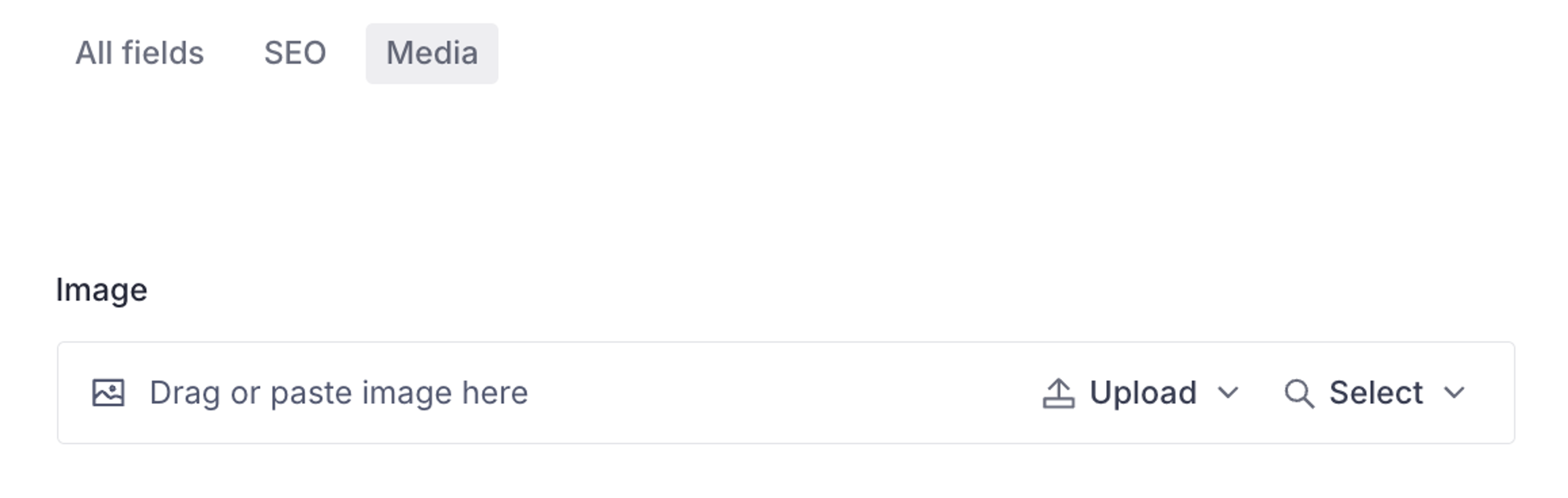
Fields can belong to more than one group. Expanding on the previous example, say you want another view showing only fields that include images. You can create a new group called Media and add all the fields with a graphic element to it:
To do this, add another group called Media in groups, add group: 'media' to the icon field, and change the group property on the seoImage field to an array of strings so it appears in both groups:
import {defineField, defineType} from 'sanity'

export default defineType({
  name: 'article',
  title: 'Article',
  type: 'document',
  groups: [
    {
      name: 'seo',
      title: 'SEO',
    },
    {
      name: 'media',
      title: 'Media',
    },
  ],
  fields: [
    defineField({name: 'title', title: 'Title', type: 'string'}),
    defineField({name: 'icon', title: 'Icon', type: 'image', group: 'media'}),
    defineField({
      name: 'related',
      title: 'Related',
      type: 'array',
      of: [{type: 'reference', to: [{type: 'article'}]}],
    }),
    defineField({name: 'seoTitle', title: 'SEO title', type: 'string', group: 'seo'}),
    defineField({name: 'seoKeywords', title: 'Keywords', type: 'string', group: 'seo'}),
    defineField({name: 'seoSlug', title: 'Slug', type: 'slug', group: 'seo'}),
    defineField({name: 'seoImage', title: 'Image', type: 'image', group: ['seo', 'media']}),
  ],
})
Protip
Using field groups in a document or object does not change the structure of the document. It only affects how and where fields appear in the Studio.
In addition to document types, field groups can also be defined on object types.
Gotcha
A field inside an object cannot appear in a group by itself.
Conditional field groups
It can be useful to show or hide certain groups based on conditions. A group can be conditionally hidden using the boolean values true or false, but you can also pass a function. This function receives a single context object with the properties document, currentUser, value, and parent, where value is the current value of the document or object the groups are defined on, and parent is the value of its enclosing object (for groups defined directly on a document, this is null).
For example, you can hide the SEO group from users who don't have the administrator role:
import {defineType} from 'sanity'

export default defineType({
  name: 'article',
  title: 'Article',
  type: 'document',
  groups: [
    {
      name: 'seo',
      title: 'SEO',
      // Hide the SEO group from users without the administrator role
      hidden: ({currentUser}) => !currentUser?.roles.some((role) => role.name === 'administrator'),
    },
  ],
  fields: [
    // ...fields
  ],
})
Customizing the All fields group
When creating your first group, you may notice a new group is added by default with the title All fields.
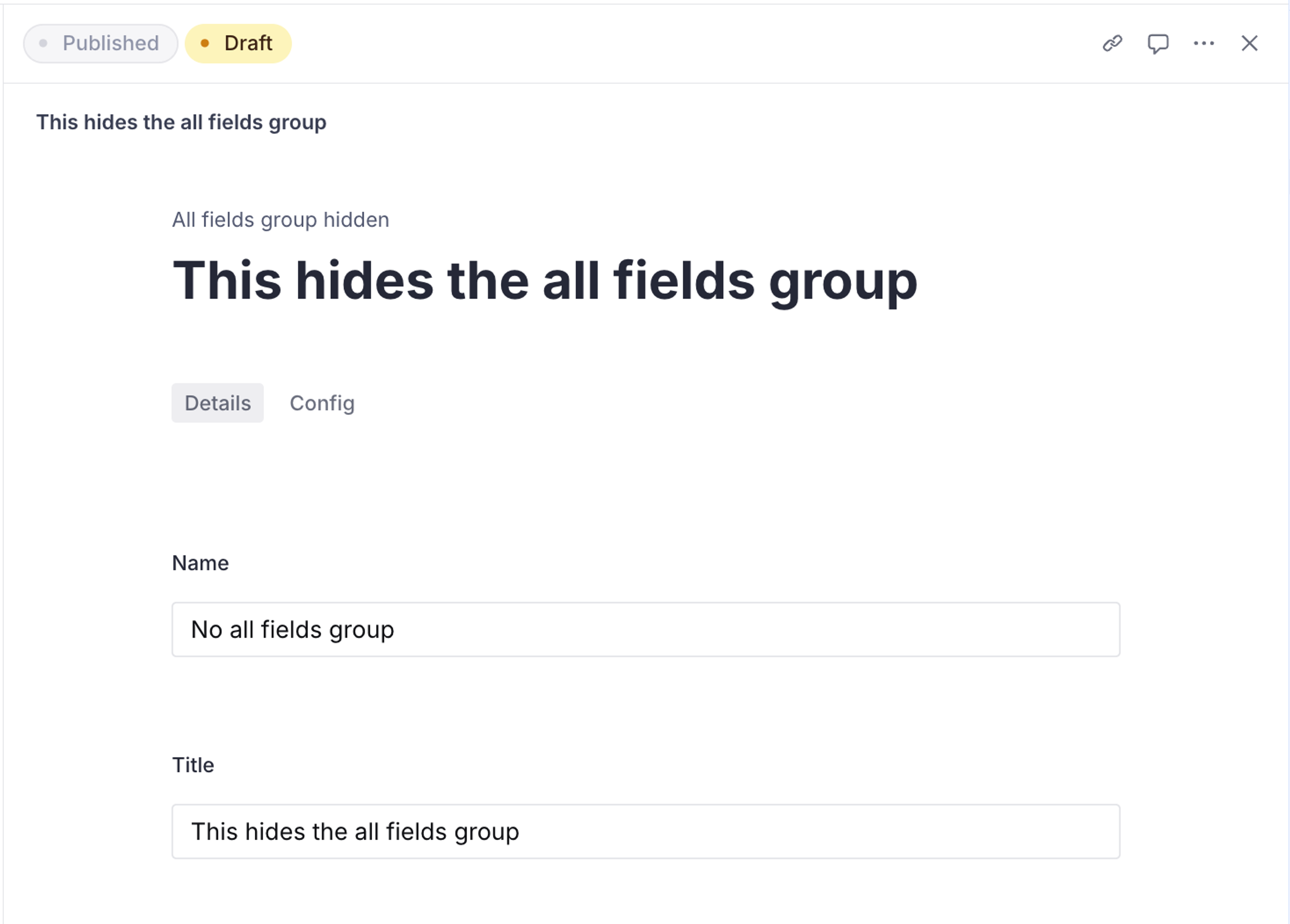
That group is a necessary addition because you might not have all your fields organized in groups. However, you have the option to hide this group.
You can do this by defining the following group in your schema:
import {ALL_FIELDS_GROUP, defineType} from 'sanity'

export default defineType({
  name: 'mySchemaType',
  type: 'document',
  groups: [
    {
      name: 'details',
      title: 'Details',
    },
    {
      ...ALL_FIELDS_GROUP,
      hidden: true,
    },
  ],
  fields: [
    // ...fields
  ],
})
Note that even if you hide the group, it will still be visible under certain conditions:
- The review changes inspector is open.
- A field that is not part of any group has been linked by a comment or any deep-linking action.
Reference
Groups declaration
Property: groups
Type: array
Defined on document or object
Requiredname
string
A unique name for the group. Fields will use this name to indicate which group they belong to.
title
string
A more descriptive, human-readable name.
icon
React Component
A React component that is displayed as the group's icon in Studio. See the icon documentation for details.
boolean | function
Set to true to hide the group. Also accepts a function, which takes an object argument with the properties
currentUser,parent,value. Must return a boolean. See the example below. Defaults to false.default
boolean
Defines the group as the default group. Defaults to false.
groups: [
  {
    name: 'groupName',
    title: 'Group title',
    icon: CogIcon, // optional
    default: true, // optional, defaults to false
    hidden: ({currentUser, value, parent}) => true // optional
  }
]
Field declaration
Property: group
Type: string or array
Defined on a field. Set to one or more group names to assign the field to one or more groups.
defineField({
  name: 'fieldName',
  title: 'Field title',
  type: 'string',
  group: 'groupName' // or ['groupName']
})