Scheduled drafts user guide
Learn to schedule individual drafts and browse scheduled drafts in the releases interface.
This guide is an overview of the scheduled drafts interface and workflow. For technical details on enabling/disable scheduled drafts in your studio, see the scheduled drafts configuration documentation.
Permissions required
If you're on a custom role, Schedule Publish needs more than access to the document you're scheduling. Each scheduled draft is a single-document release, so your role also needs content resources covering drafts, release versions, and the release itself. See Permissions for Studio features.
Schedule a draft
You can schedule a draft from the document pane.
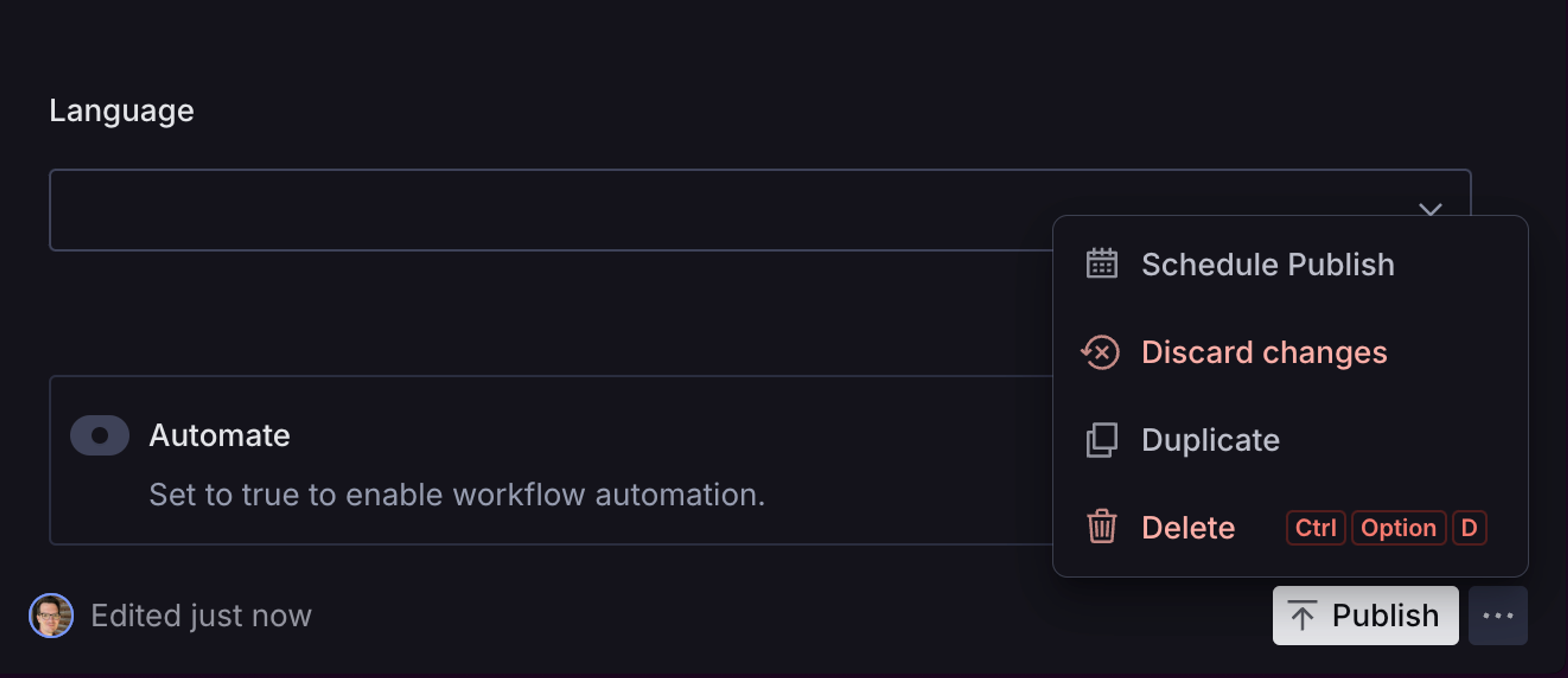
- From an existing document draft, select the document actions menu "..." next to the publish button.
- Then, select Schedule Publish and set a date and time in the future before confirming.
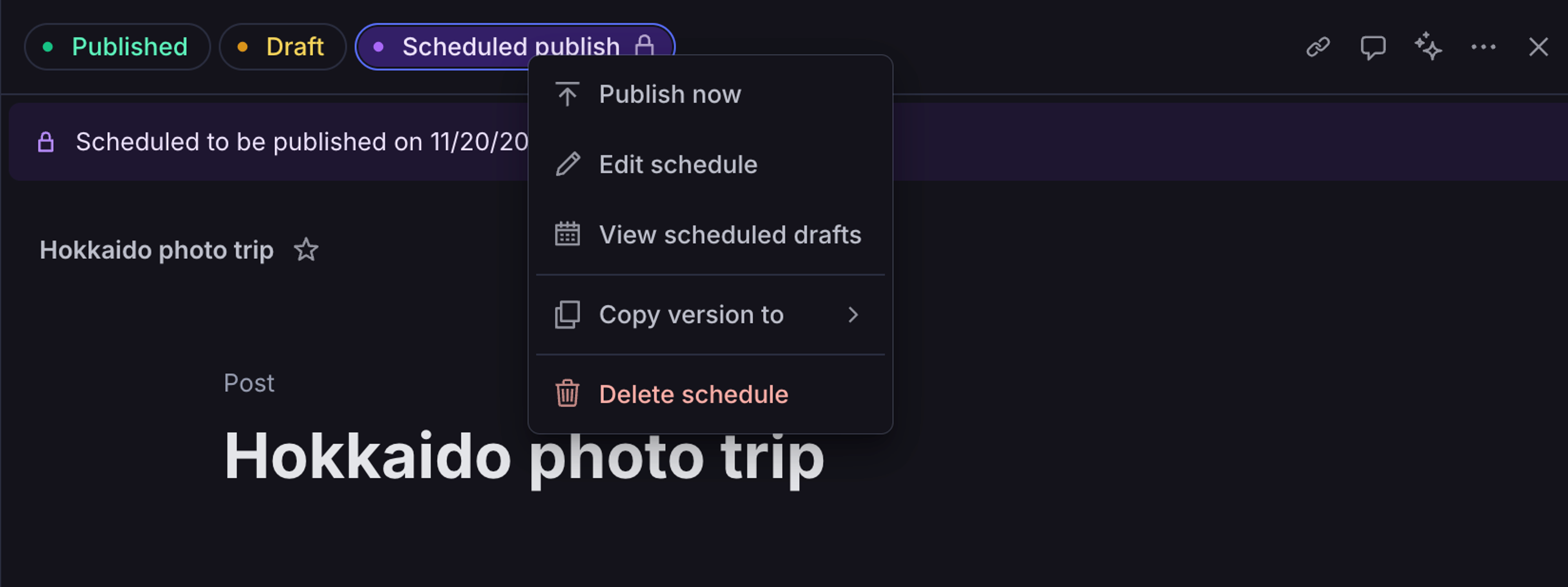
When a document contains a scheduled draft, you'll see a new pill alongside the perspectives at the top of the document pane.
Schedule publish is unavailable when a reference isn't published
If Schedule publish is unavailable, check the document for reference fields that point to documents nobody has published yet. Unless a developer has set the field up to allow it, the document a reference points to must be published before the document holding the reference can publish. The field shows the message "Referenced document must be published", and the action's tooltip reads "Cannot Schedule Draft due to validation errors in the current draft."
Publish the referenced document first, then schedule this one. If both documents need to go live at the same moment, use a content release instead. A release holds many documents and publishes them together, while a scheduled draft holds only this one.
View scheduled drafts
You can quickly jump from a document to the scheduled drafts page by right-clicking the "scheduled publish" pill at the top of the document, and selecting "View scheduled drafts"
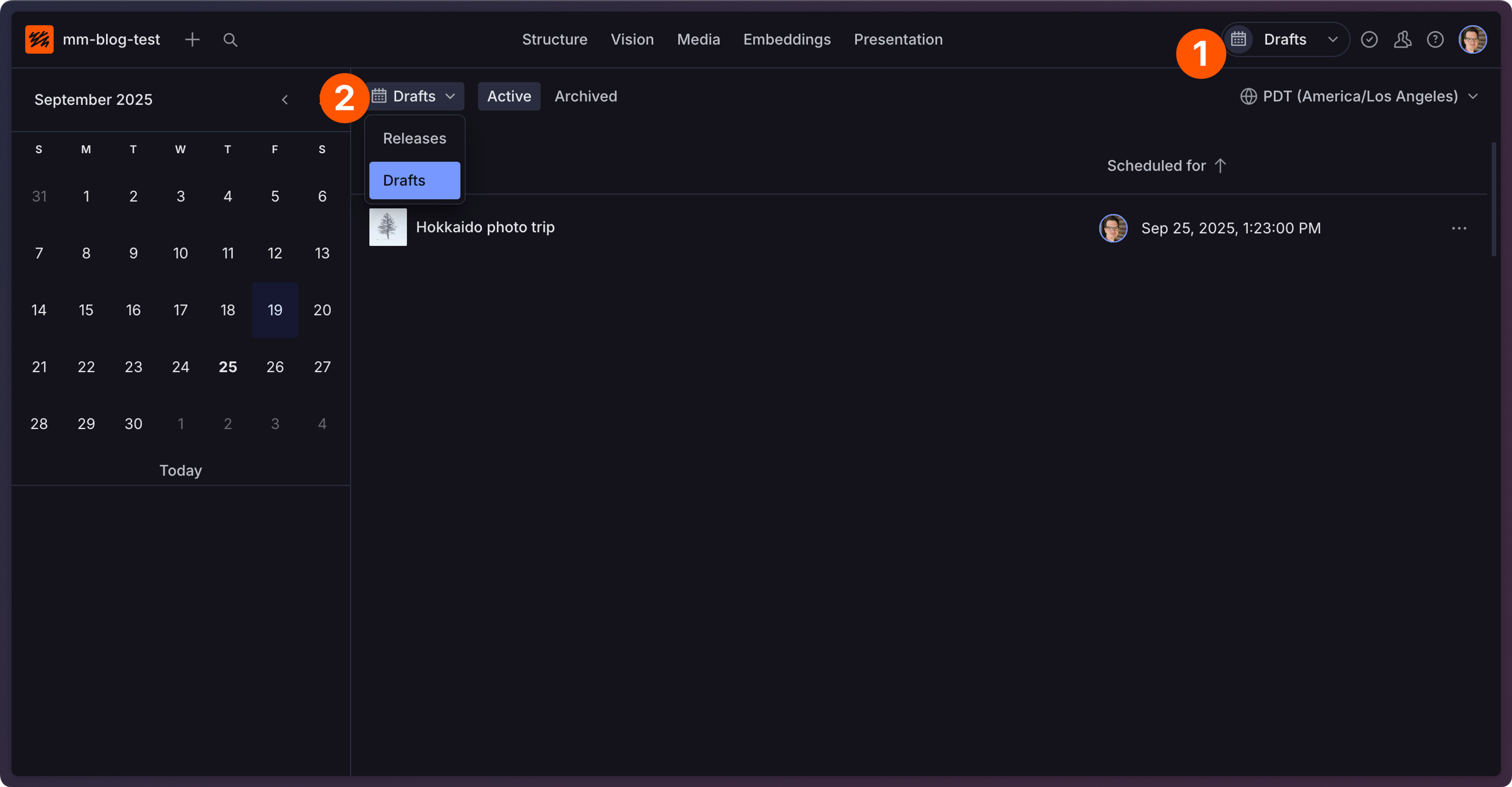
You can also navigate there by first going to the content releases screen.
- Select the calendar icon in the perspective picker to navigate to the content releases list.
- Select the Releases dropdown and select Drafts.
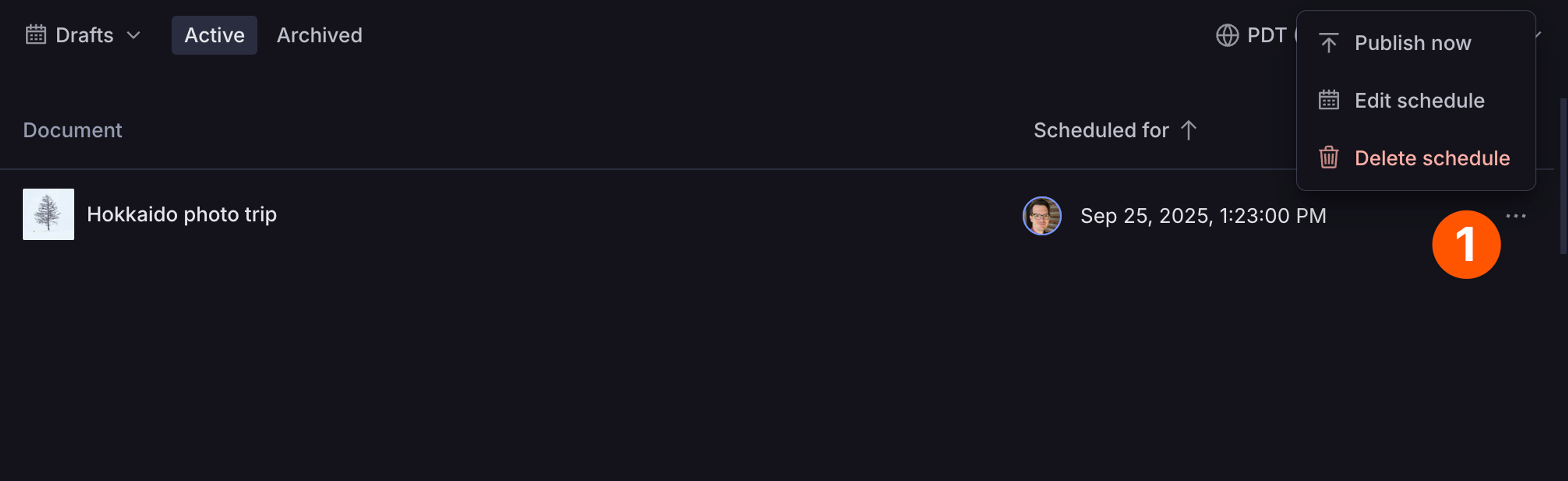
From here, you can edit individual draft schedules, delete drafts, or immediately publish them from the "..." menu in each row as shown at (1) in the screenshot below.
Edit a scheduled draft's contents
You can only have one scheduled draft scheduled per document at a given time. To make changes to the contents of a draft, you can right click the “Scheduled publish” pill at the top of the document and select “Edit schedule”. You can also use the "..." menu from the scheduled drafts list.
You can now make changes to the scheduled draft’s content. Click “Schedule Publish” document action, which will ask for confirmation of the publish date and time, and re-schedule the draft’s publish.
Use this same approach to edit only the date and time to publish the scheduled draft.