Create a link to a single edit page in your main document type list
In this article, we'll explore how to add a link to a single document from the main document type list.
Prerequisites
Starting in Studio version 6.17.0, there’s a dedicated API for creating singletons.
If you’re using an older version of Studio, please refer to Create a link to a single edit page in your main document type list (prior to Studio version 6.17.0).
In some cases, to make a strong editing experience, it's important to create a document type that only serves one document instead of a list of documents. In this article, we'll create the often-used "site settings" pattern that implements a schema to control global variables for our front-end site. To create this pattern, we'll register a singleton in the document.singletons configuration registry, then surface it in our list with the Structure Builder API.
If you're not familiar with the Structure Builder API, be sure to read through the other articles in this series.
1. Introduction and concepts
The Structure tool is included with Sanity Studio and allows you to customize the experience of creating, browsing, and managing documents.
2. Set up Structure Builder in your project
In this article, we'll explore how to initialize Structure Builder and override the default title of the "Content" list.
3. Create a link to a single edit page in your main document type list
(You're here)
4. Manually group items in your document list
In this article, we'll manually group a few singleton "site setting" documents.
5. Dynamically group documents
In this article, we'll use the documentList() method to dynamically group documents with a GROQ filter.
6. Create a custom document pane
In this article, we'll look at adding a custom document view to view the JSON data for our posts.
Creating the site settings schema and document
Before adjusting the studio's main document type list, we'll create a document type and a specific document. For this example, we'll keep it simple, but any global variable you need can be stored in a schema like this. Start by creating a new schema named siteSettings.ts in the /schemas directory. Nothing about this schema is singleton-specific. Singletons are configured separately, and the schema type a singleton points at is an ordinary document type.
import {defineField, defineType} from 'sanity'

export default defineType({
  name: 'siteSettings',
  title: 'Site Settings',
  type: 'document',
  fields: [
    defineField({
      name: 'title',
      title: 'Site Title',
      type: 'string'
    }),
    defineField({
      name: 'description',
      title: 'Site Description',
      type: 'text'
    })
  ]
})
Be sure to import and specify this in your project's /schemas/index.ts file. The example shows the schema setup from the default blog template you can pick when setting up a new project with the Sanity CLI, and which we'll be using as our example studio going forth. Importing and adding your siteSettings schema should work the same even if your setup looks different.
import blockContent from './blockContent'
import category from './category'
import post from './post'
import author from './author'
import siteSettings from './siteSettings'

export const schemaTypes = [
  post,
  author,
  category,
  blockContent,
  siteSettings,
]
At this point, we have a siteSettings document type but no documents, and our editors can create as many site settings documents as they like. Registering the type as a singleton solves both problems.
Registering the singleton
Singletons are registered in your studio configuration, not on the schema type. A singleton definition binds a definition ID to a document ID and a schema type. All three are siteSettings in our case, so we can use the string shorthand.
import {defineConfig} from 'sanity'
import {structureTool} from 'sanity/structure'
import {schemaTypes} from './schemas'
import {myStructure} from './structure'

export default defineConfig({
  name: 'default',
  title: 'My Studio',
  projectId: 'YOUR_PROJECT_ID',
  dataset: 'production',
  plugins: [structureTool({structure: myStructure})],
  schema: {types: schemaTypes},
  document: {
    singletons: ['siteSettings'],
  },
})
The shorthand expands to {id: 'siteSettings', documentId: 'siteSettings', schemaType: 'siteSettings'}. When you need different values, pass a definition object instead. The definition ID is optional, inheriting the document ID when you leave it out. Several singletons can share one schema type, each with its own title, icon, and initial value. You can use the defineSingleton helper to ensure your configuration is typed correctly.
import {defineConfig, defineSingleton} from 'sanity'

export default defineConfig({
  // ...
  document: {
    singletons: [
      // Shorthand definition.
      'siteSettings',
      // Full definition, giving control over schema type, document id, initial value, and Structure Tool defaults.
      defineSingleton({
        documentId: 'springCampaign',
        schemaType: 'campaign',
        title: 'Spring campaign',
        initialValue: {season: 'spring'},
      }),
      defineSingleton({
        documentId: 'summerCampaign',
        schemaType: 'campaign',
        title: 'Summer campaign',
        initialValue: {season: 'summer'},
      }),
    ],
  },
})
With the registry entry in place, Studio takes care of the rest:
- It generates a dedicated initial value template for each singleton and keeps it out of every part of Studio that can create documents, including the global create menu, structure panes, and reference inputs.
- It removes the
duplicatedocument action. - It hides
siteSettingsfrom the implicit default content list and appends the singletons to that list. Singletons are listed in the order they were registered. - It injects
context.singleton, the singleton definition ID, into document-scoped configuration such as document actions, badges, inspectors, field actions, and comments. The lookup is by published document ID, so drafts and release versions match too. - It adds a “Singleton” document badge to the document editor.
If your studio uses the default structure, you are already done, because the singleton shows up in the content list with no structure code at all. This series builds a custom structure, so we'll add it ourselves in the next section.
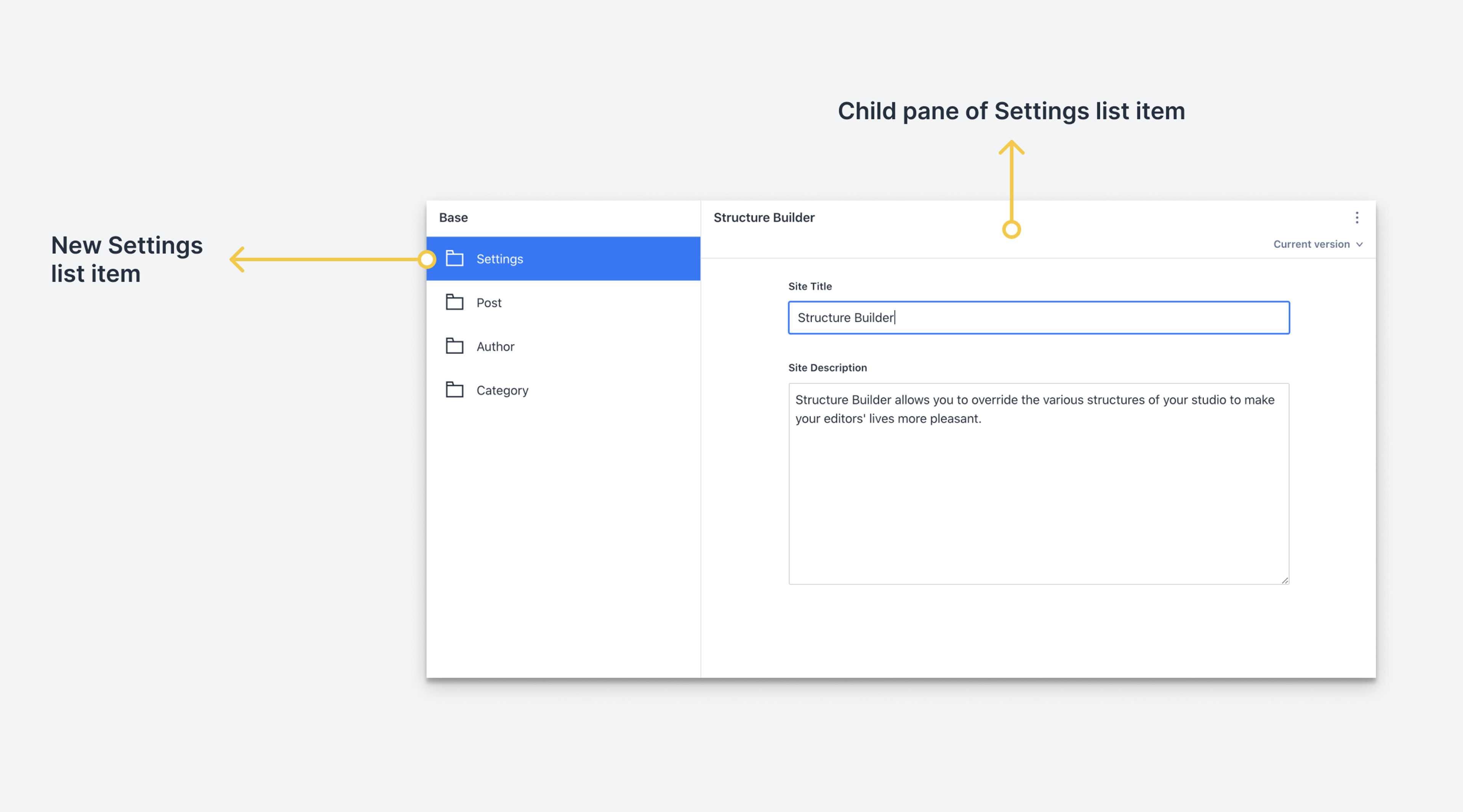
Adding the document to the first panel
To add a single document to the first panel, we'll edit the structure.ts file that we created in this article.
import {type StructureResolver, type StructureBuilder} from 'sanity/structure'

export const myStructure: StructureResolver = (S: StructureBuilder) =>
  S.list()
    .title('Base')
    .items([
      S.listItem().singleton('siteSettings'),
      ...S.documentTypeListItems(),
    ])
In the last article, we overrode the title of our list but showed all of our Document Types with no modifications in the .items() method. Now, we need to modify the array that the .items() method uses.
S.listItem()
Since the items will be displayed in array order, we'll start our array with our new custom item. To make a custom list item, we'll use the .listItem() method on the main Structure Builder object.
The listItem() method has multiple nested methods for defining its properties, but a singleton fills most of them in for you. The item's ID defaults to the definition ID, and its title and icon fall back to the singleton definition first, then to the schema type. Every default is still overridable by normal chaining, for example S.listItem().singleton('siteSettings').title('Global settings'). Titles are not disambiguated for you, so give each definition a title when several singletons share a schema type.
S.listItem().singleton()
The S.listItem().singleton() method takes a singleton definition ID and wires up the child pane for us with the right schema type and document ID, so there's no need to call .child() ourselves.
S.document()
If you want to control the list item and its child pane separately, S.document().singleton() gives you the singleton document pane on its.
S.listItem()
  .title('Settings')
  .id('settings')
  .child(S.document().singleton('siteSettings'))
Wiring a pane by hand with S.document().schemaType('siteSettings').documentId('siteSettings') is still fully supported, which means existing singleton setups keep working without migrating to the first-class singletons API.
Listing out all the document types
We still need to show any other document type items in our list. To do this, instead of simply calling the S.documentTypeListItems() method like we did in the last article, we need to put each of that method's array items into our current array. To do this, we use the JavaScript Spread operator: ....
There is no duplicate to clean up afterwards. S.documentTypeListItems() excludes singleton schema types automatically, so Site Settings appears exactly once: as the list item we defined. The manual filter() that older setups needed here can be deleted.
Listing every registered singleton at once
Rather than hand-writing a list item per singleton, you can let the list pull them from the registry. The list().singletons() method adds every singleton, in registration order, including any registered by plugins. Pass an array of definition IDs to add a specific set instead.
import {type StructureResolver, type StructureBuilder} from 'sanity/structure'

export const myStructure: StructureResolver = (S: StructureBuilder) =>
  S.list()
    .title('Base')
    .items(S.documentTypeListItems())
    .singletons()
Two rules are worth remembering. Call .items() before .singletons(), because the returned builder deliberately has no .items() method, and calling it afterwards would replace the whole array and silently drop the singleton items. Second, avoid combining a bare .singletons() with a hand-written S.listItem().singleton('siteSettings') in the same list, since that adds the singleton twice and fails with a duplicate ID SerializeError. Pass an explicit array when you need to mix the two. Repeated .singletons() calls append.
Next steps
We now have a working singleton in our main list pane. In the next article, we'll take a look at manually grouping multiple list items to create sections that will make an editor's life easier.