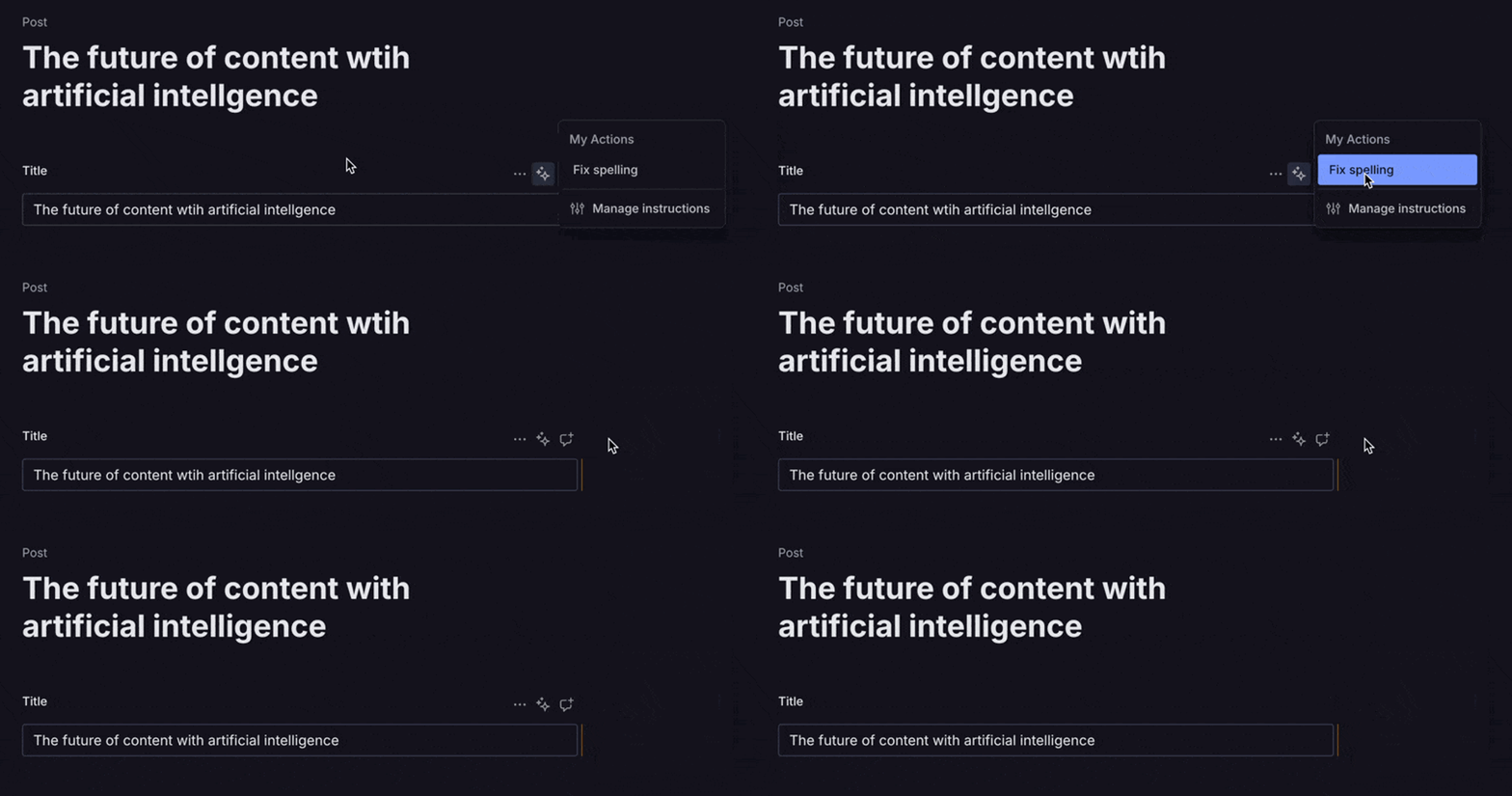
Custom field actions
Set up and use custom field actions in AI Assist to add Agent Actions or other custom actions to the document or field action menus.
In this guide, you create a field action that uses Agent Action Transform to fix the spelling of a field.
This is a paid feature
This feature is available in the Growth plan.
Prerequisites:
- AI Assist plugin (
@sanity/assist) v4.3.0 or higher is required to enable custom field actions. - A studio configured with the AI Assist plugin. See the following guide for details on installation and setup.
- Available usage for Agent Actions requests (Transform and Generate).
- A deployed schema (
npx sanity@latest schemas deploy). Agent Actions use it throughschemaId. For the steps, see the Transform quick start.
Add your first field action
You configure field actions in the assist plugin configuration. Open the sanity.config.ts file in your studio and add the fieldActions key to your assist configuration.
import { defineConfig } from "sanity"
import { assist } from "@sanity/assist"

export default defineConfig({
// ... other settings
  plugins: [
    assist({
      fieldActions: {
        // <-- Field actions are configured here.
      }
    })
  ]
})
For this example, you'll need a few imports as well. Update your config to include the new imports. The dependencies should already be a part of your studio.
import { defineConfig, useClient } from 'sanity'
import { assist, defineAssistFieldAction } from '@sanity/assist'
import { useMemo } from 'react'

export default defineConfig({
// ... other settings
  plugins: [
    assist({
      fieldActions: {
      }
    })
  ]
})
Set up useFieldActions
Start by defining useFieldActions. It is called for the document itself and for all fields. It can call React hooks. Actions returned by the hook are added to the corresponding document or field menu. We recommend wrapping the returned actions in useMemo.
import { defineConfig, useClient } from 'sanity'
import { assist, defineAssistFieldAction } from '@sanity/assist'
import { useMemo } from 'react'

export default defineConfig({
// ... other settings
  plugins: [
    assist({
      fieldActions: {
        title: "My Actions", // Optional: sets the group title
        useFieldActions: (props) => {
          const {
            actionType
          } = props
          return useMemo(() => {
            if (actionType === 'field') {
              return [
                defineAssistFieldAction({
                  title: "Fix spelling",
                  onAction: async () => {
                    // ... Action logic here
                  }
                })
              ]
            }
            return []
          }, [actionType])
        }
      }
    }),
  ]
})
This checks if the action, stored as actionType, is a field or the document, then returns an array of actions to apply to the field's action menu.
The defineAssistFieldAction helper adds a single action. onAction cannot call hooks. If you need any state from a hook, it should be pre-assembled in useFieldActions before returning useMemo.
Gather props and use the client to call Transform
This action uses Agent Action Transform, so you need a client instance, as well as some contextual details to pass in to Transform.
- Destructure additional props that you need for Transform.
useFieldActionsgives you access to details about the schema, the type of action, the path to a field (if available) and more. - Set up the client with
useClient. You already importeduseClientin a previous step. Note: Agent Actions require using thevXAPI version at this time. - Configure Transform to pass the existing contents of the field to the AI, then replace it with the response.
Here's the final code:
import { defineConfig, useClient } from 'sanity'
import { assist, defineAssistFieldAction } from '@sanity/assist'
import { useMemo } from 'react'

export default defineConfig({
// ... other settings
  plugins: [
    assist({
      fieldActions: {
        title: "My Actions", // Optional: sets the group title
        useFieldActions: (props) => {
          const {
            actionType,
            schemaId,
            documentIdForAction,
            path,
            getConditionalPaths
          } = props
          const client = useClient({apiVersion: 'vX'})
          return useMemo(() => {
            if (actionType === 'field') {
              return [
                defineAssistFieldAction({
                  title: "Fix spelling",
                  onAction: async () => {
                    await client.agent.action.transform({
                      schemaId,
                      documentId: documentIdForAction,
                      instruction: "fix any spelling mistakes",
                      target: {path},
                      conditionalPaths: { paths: getConditionalPaths()}
                    })
                  }
                })
              ]
            }
            return []
          }, [actionType, schemaId, documentIdForAction, path, getConditionalPaths, client])
        }
      }
    }),
  ]
})
Run the field action
Save and run your studio, and you should see the field action in the AI Assist menu for any supported fields.
Fill a field using document context
The following example adds a "Fill field" action to all fields in the document by calling Agent Action Generate.
The action does the following:
- Create the document as a draft if it does not exist, respecting initial values (
targetDocument). - Use existing document state to determine what should be put in the field (
instruction,instructionParams). - Pass the current
readOnlyandhiddenstate of the document form to the Agent Action, so it respects it (conditionalPaths). - Output to the field the action started from (
target.path).
import {assist, defineAssistFieldAction} from '@sanity/assist'
import {EditIcon} from '@sanity/icons'
import {useMemo} from 'react'
import {useClient} from 'sanity'

assist({
  fieldActions: {
    title: 'Custom actions',
    useFieldActions: (props) => {
      const {
        documentSchemaType,
        actionType,
        schemaId,
        getDocumentValue,
        getConditionalPaths,
        documentIdForAction,
        path,
        schemaType,
      } = props

      // hook usage has to happen outside onAction, so preassemble state in useFieldActions and pass to useMemo
      const client = useClient({apiVersion: 'vX'})

      return useMemo(() => {
        if (actionType === 'document') {
          // in this case we dont want a document action
          return []
        }

        return [
          defineAssistFieldAction({
            title: 'Fill field',
            icon: EditIcon,
            onAction: async () => {
              await client.agent.action.generate({
                schemaId,
                targetDocument: {
                  operation: 'createIfNotExists',
                  _id: documentIdForAction,
                  _type: documentSchemaType.name,
                  initialValues: getDocumentValue(),
                },
                instruction: `
                        We are generating a new value for a document field.
                        The document type is ${documentSchemaType.name}, and the document type title is ${documentSchemaType.title}
                        The document language is: "$lang" (use en-US if unspecified)
                        The document value is:
                        $doc
                        ---
                        We are in the following field:
                        JSON-path: ${path.toString()}
                        Title: ${schemaType.title}
                        Value: $field (consider it empty if undefined)
                        ---
                        Generate a new field value. The new value should be relevant to the document type and context.
                        Keep it interesting. Generate using the document language.
                     `,
                instructionParams: {
                  doc: {type: 'document'},
                  field: {type: 'field', path},
                  lang: {type: 'field', path: ['language']},
                },
                target: {
                  path,
                },
                conditionalPaths: {
                  paths: getConditionalPaths(),
                },
              })
            },
          }),
        ]
      }, [
        client,
        documentSchemaType,
        schemaId,
        getDocumentValue,
        getConditionalPaths,
        documentIdForAction,
        actionType,
        path,
        schemaType,
      ])
    },
  },
})
Define actions, groups, and dividers
The following are the available helpers for defining actions.
Add an action with defineAssistFieldAction
Adds a single action that will appear in the document/field action menu.
onAction cannot call hooks. If state from a hook is needed, it should be pre-assembled by useFieldActions.
defineAssistFieldAction({
  title: 'Do something',
  icon: ActionIcon,
  onAction: async () => {
    //perform actions
  },
})
Group actions with defineAssistFieldActionGroup
Adds a group to hold one or more actions (or nested groups).
By default, any actions returned by useFieldActions will be grouped under title.
useFieldActions: (props) => {
  return [
    defineAssistFieldAction({/* ... */}),
    defineAssistFieldActionGroup({
      title: 'More actions',
      children: [
        defineAssistFieldAction({/* ... */}),
      ],
    })
  ]
}
Return only groups from useFieldActions
If useFieldActions only returns groups, the default wrapper group will be omitted. This allows full control over each group title.
Add a divider with defineFieldActionDivider
Adds a divider between actions or groups. Takes no arguments:
useFieldActions: (props) => {
  return useMemo(() => [
    defineAssistFieldAction({/* ... */}),
    defineFieldActionDivider(),
    defineAssistFieldAction({/* ... */}),
  ], [])
}
Get user input with useUserInput
For certain actions, it is useful to have the user provide additional information or details that can be used as parameters for the action.
useUserInput returns a getUserInput function that can be called and awaited to return input from the user.
The getUserInput function takes input configuration and will display an input dialog to the user. When the user completes the dialog, the user-inputted text will be available (or undefined if the user closed the dialog).
assist({
  fieldActions: {
    title: 'Custom actions',
    useFieldActions: (props) => {
      const getUserInput = useUserInput()

      return useMemo(
        () => [
          defineAssistFieldAction({
            title: 'Do something with user input',
            onAction: async () => {
              const inputResult = await getUserInput({
                title: 'What do you want to do?', // dialog title
                inputs: [
                  {
                    id: 'topic',
                    title: 'Topic',
                  },
                  {
                    id: 'facts',
                    title: 'Facts',
                    description: 'Provide additional facts that will be used by the action',
                  },
                ],
              })
              if (!inputResult) {
                return // user closed the dialog
              }

              //use the result from each input
              //const [{result: topic}, {result: facts}] = inputResult
            },
          }),
        ],
        [getUserInput],
      )
    },
  },
})